
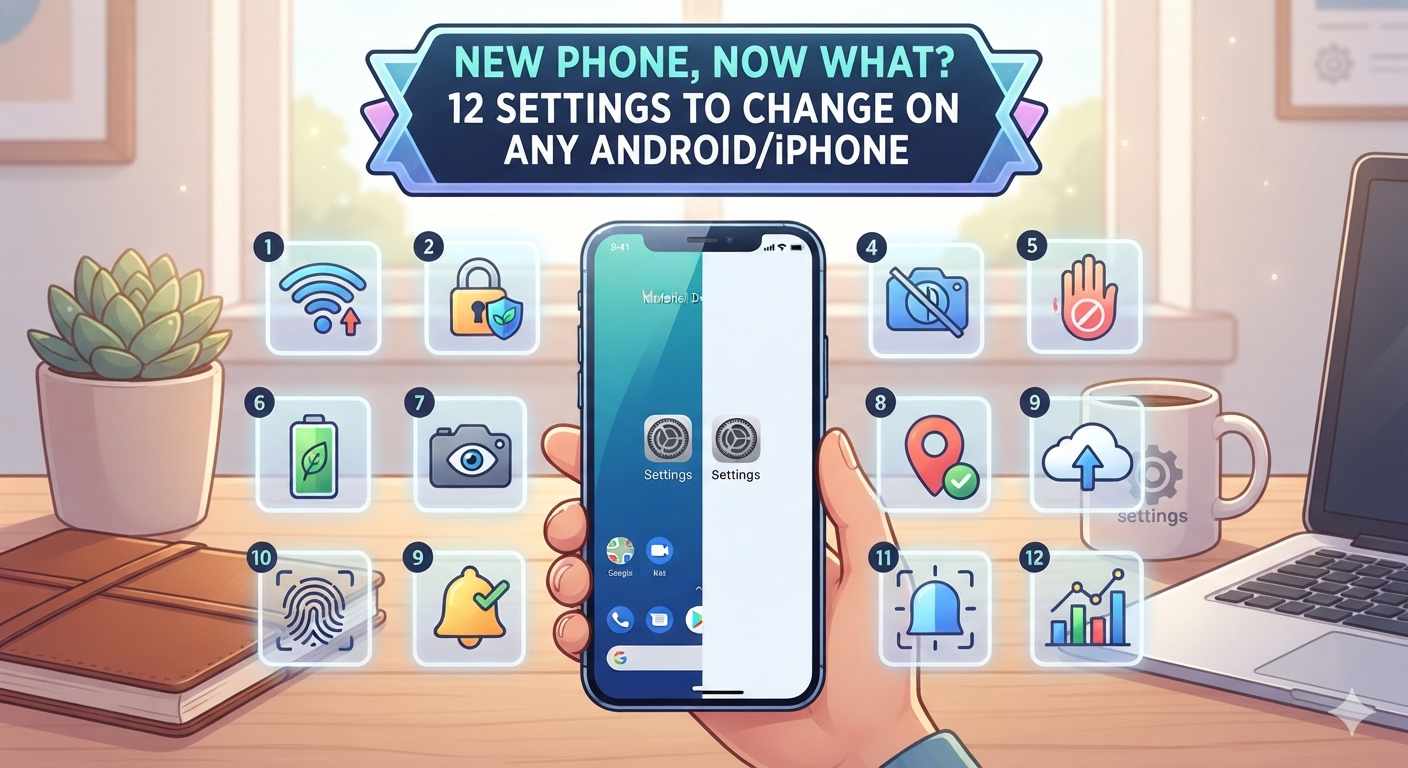
That new phone smell is real, and so is the temptation to just start using your device the second it powers on. But those factory settings were designed for the widest possible audience, not for you specifically. Before you snap the case on and toss the box in the recycling bin, it pays to spend fifteen minutes adjusting a handful of settings. Doing this now saves you from battery drain, privacy headaches, and annoying notifications down the road. Whether you just unboxed the latest iPhone or a shiny new Android flagship, the same basic principles apply. Here are twelve settings worth changing right away, so your new phone actually works the way you want it to from day one.
Start With Security Basics
Before anything else, lock down how your phone protects itself. Most people tap through the setup screen quickly and pick a four-digit PIN because it feels faster, but that’s a mistake. Switch to a six-digit passcode at minimum, and turn on Face ID or fingerprint unlock as a convenient backup rather than your only line of defense. On both iPhone and Android, go into your security settings and confirm that biometric login is active and that a strong passcode backs it up. This combination gives you speed for everyday unlocking and a real barrier if someone tries to guess their way in. It only takes a minute, but it’s the single most important step on this entire list.
Turn On Two-Factor Authentication
Your phone is now the key to your entire digital life, from banking apps to email to social media. That makes two-factor authentication non-negotiable. Head into your Apple ID or Google Account settings and enable it immediately, if it isn’t already on by default. This adds a second verification step, usually a code sent to your device, whenever someone tries logging into your account from an unfamiliar location. It sounds like a small hassle, but it’s the difference between a stolen password being useless and a stranger gaining full access to your photos, messages, and payment information. Most major apps you use daily, including email providers and banking services, also offer their own two-factor setup, so it’s worth checking those individually too.
Tame Your Notifications Before They Take Over
Out of the box, nearly every app you install wants permission to buzz, ping, and badge you constantly. Left unchecked, this turns your lock screen into a wall of noise within a week. Go into Settings, then Notifications, and go app by app deciding what actually deserves your attention. Messages and calls, sure. A random game asking you to log in for a daily reward? Turn that off immediately. Both iPhone and Android let you customize notifications by app, including whether they show on the lock screen, make a sound, or just quietly log in your notification center. Taking ten minutes here now means you won’t spend the next two years annoyed every time your phone lights up for something meaningless.
Set Up Focus Modes or Do Not Disturb Schedules
Once you’ve trimmed which apps can notify you, take it a step further with scheduled quiet time. iPhones have Focus modes that let you customize what gets through during work hours, sleep, or personal time. Android has a similar feature called Digital Wellbeing with its own Do Not Disturb scheduling. Set your phone to automatically silence non-essential alerts overnight and during whatever hours you need to concentrate. You can still allow calls from favorite contacts to break through in case of emergencies, so you’re not cutting yourself off completely. This single setting change tends to have one of the biggest impacts on daily stress levels, since it stops your phone from interrupting sleep or focus time with things that could easily wait.
Adjust Display and Battery Settings for Everyday Comfort
Screen brightness and timeout settings are usually set conservatively out of the box, which doesn’t always match how you actually use your phone. If you find yourself constantly tapping the screen awake because it dims too fast, head into Display settings and extend the auto-lock timer to something more reasonable, like two or three minutes. While you’re there, consider enabling dark mode, which not only looks cleaner but can meaningfully extend battery life on phones with OLED screens, common in most modern iPhones and Android devices. It’s also a good moment to turn on adaptive brightness if it isn’t already active, since it automatically adjusts screen brightness based on your surroundings rather than forcing you to manually change it throughout the day.
Check Battery Health and Optimization Features
New phones come with battery optimization tools that most people never open. On iPhone, check Battery Health settings to see options like Optimized Battery Charging, which slows down charging past 80 percent overnight to reduce long-term battery wear. Android phones typically offer something similar under Battery settings, sometimes labeled as adaptive charging or battery protection. Turning these on now, while your battery is brand new, helps it hold its charge better for years rather than months. It’s a setting most people ignore entirely until their battery life noticeably declines, at which point it’s too late to undo the damage. Five minutes now genuinely extends the usable lifespan of your device.
Review Privacy and App Permissions
Every app you download will ask for permissions, and many request far more access than they actually need. A flashlight app doesn’t need your location, and a photo editor doesn’t need your contacts list. Go into your privacy settings and review location access, camera and microphone permissions, and contact access for every app currently installed. Both iPhone and Android let you set location access to “only while using the app” rather than “always,” which is a smart default for almost everything except navigation apps. This single review process often reveals surprising requests you never noticed during a quick install, and adjusting them now protects your personal data without breaking any app’s core functionality.
Back Up Your Data Automatically
Finally, make sure your new phone is set up to protect itself against loss, theft, or accidental damage. Enable automatic cloud backup through iCloud on iPhone or Google’s backup service on Android, and confirm that photos, contacts, and app data are included. Check that backups are set to run automatically over Wi-Fi rather than requiring you to remember to do it manually, since that’s the setting most people forget to verify. It’s also worth confirming your storage plan has enough room, since running out of cloud space silently stops backups without always alerting you clearly. Taking this last step means that whatever happens to your phone down the road, a scratch, a drop, or an upgrade a few years from now, your photos and information move with you safely.
Frequently Asked Questions
How long does it take to set up all these settings on a new phone?
Most people can get through this entire list in fifteen to twenty minutes. It feels like a lot upfront, but it saves far more time and frustration later.
Are these settings different between iPhone and Android?
The exact menus and wording differ, but the core features exist on both platforms. Security, notifications, battery optimization, and privacy controls are standard on any modern smartphone.
Do I need to change these settings again after a software update?
Usually not, but it’s worth double-checking after major updates since new features occasionally reset certain preferences or introduce new permission requests you’ll want to review.
Will turning off notifications for most apps cause me to miss anything important?
No, as long as you keep essentials like messages, calls, and calendar alerts active. Most notifications people disable are for games, shopping apps, and social media, not anything urgent.
Is it necessary to enable two-factor authentication on every single app?
It’s most important for your Apple ID or Google account, email, and banking apps. Enabling it wherever it’s available adds extra protection, but those three categories matter most.