
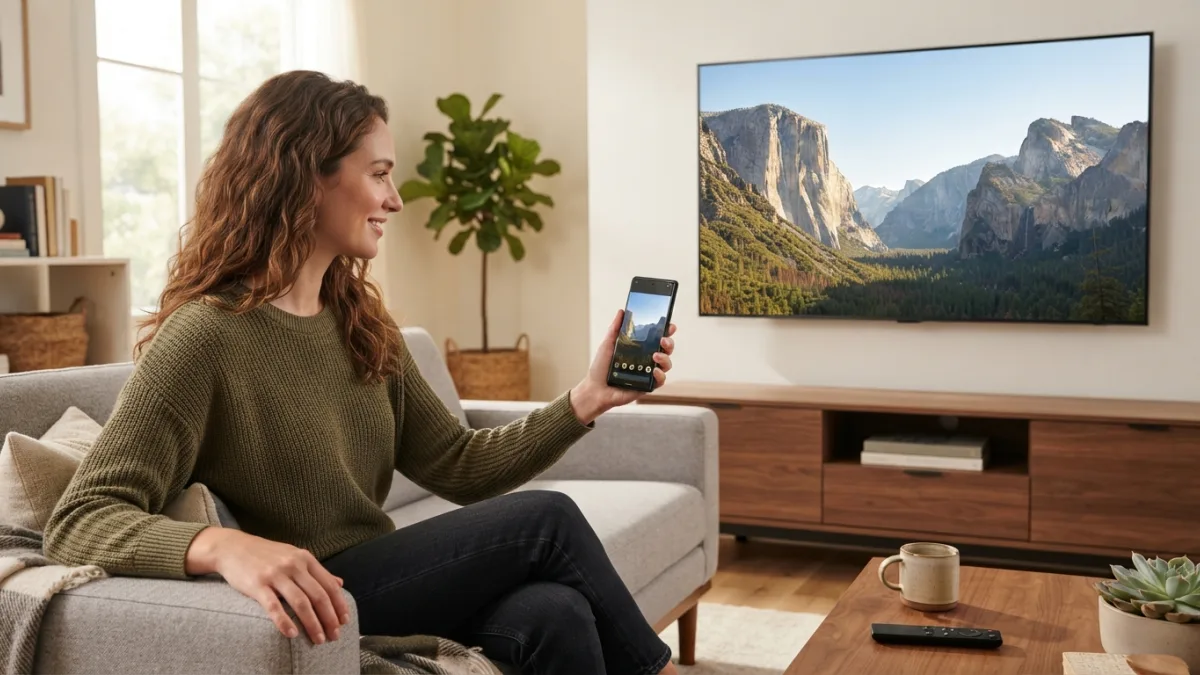
How to Cast Your Phone Screen to a TV
Streaming a video on your phone is easy, but squinting at a five-inch screen when you have a perfectly good TV sitting across the room makes no sense. Whether you want to watch a movie, show off vacation photos, or present a work document to your family, learning how to cast phone to tv opens up a much better viewing experience. The good news is that you don’t need fancy equipment or technical skills to do it. Most modern phones and televisions already have the tools built in, and the ones that don’t can be upgraded with an inexpensive streaming device. This guide walks through every major method, from wireless casting to old-fashioned cables, so you can pick whatever fits your setup and budget.
Why Cast Your Phone Screen to a TV?
Before jumping into the how-to, it helps to understand why this trick has become so popular. A bigger screen simply makes everything better, whether you’re watching a sports highlight reel, scrolling through a photo album, or reviewing a slideshow for a school project. Screen mirroring also lets you share content with a group instead of passing a phone around the room. Parents use it to put on cartoons for kids, gamers use it to play mobile titles on a larger display, and remote workers use it to present during video calls. Once you experience how simple a smart TV connection can be, going back to a tiny screen feels like a downgrade. It’s one of those features that quietly makes daily life a little more convenient. If you want to dig deeper, our guide on How to Turn Off Autocorrect Mistakes on Your Android Phone covers this in more detail. This is a common part of dealing with cast phone to tv, and it is worth keeping in mind.
Check What You’re Working With First
Not every phone and TV pair up the same way, so it helps to know what you have before choosing a method. Smart TVs from brands like Samsung, LG, Sony, and Vizio usually include built-in casting features that work with Android and iPhone devices. Older, non-smart TVs need an external device such as a Chromecast, Roku, Amazon Fire TV Stick, or Apple TV to add that functionality. Your phone matters too, since Android and iOS handle casting slightly differently. Take a minute to check your TV’s settings menu or user manual, and note whether your phone is Android or iPhone. Once you know these two things, picking the right casting method becomes much easier and saves you from wasted troubleshooting later. Many people run into this exact issue with cast phone to tv at some point.
How to Cast Phone to TV Using Wireless Options
Wireless casting is the most popular way to get your phone’s screen onto a television because there are no wires to manage and setup usually takes just a few minutes. Most methods rely on both devices being connected to the same Wi-Fi network, so double-check that before you start. Once connected, your phone and TV communicate directly, letting you stream video, mirror your entire screen, or send specific apps straight to the bigger display. Below are the most common wireless approaches, broken down by device type. Keeping cast phone to tv in mind here will save you time later on.
Casting from an Android Phone
Android phones have casting features built directly into the operating system, which makes the process fairly painless. Here’s a simple walkthrough: This detail matters more than it seems once cast phone to tv comes up again.
- Connect your phone and TV to the same Wi-Fi network.
- Swipe down from the top of your screen to open the quick settings panel.
- Tap the “Screen Cast” or “Cast” icon (the wording varies slightly by phone brand).
- Select your TV or streaming device from the list of available options.
- Wait a few seconds for your screen to appear on the TV.
If you don’t see a Cast option in your quick settings, check your phone’s Settings app under “Connected Devices” or “Display.” Samsung phones often use a feature called Smart View, which works the same way but may be listed under a different name. This connects closely with another common issue — see How to Free Up Storage Space on Your Android Phone Fast for more on that. It is one of those small things that makes cast phone to tv easier to manage overall.
Casting from an iPhone
Apple devices use a feature called AirPlay to send content wirelessly to compatible screens. If your TV is an Apple TV or a smart TV with AirPlay support, such as many newer Samsung and LG models, follow these steps: This is a common part of dealing with cast phone to tv, and it is worth keeping in mind.
- Make sure your iPhone and TV are on the same Wi-Fi network.
- Open the Control Center by swiping down from the top-right corner of your screen.
- Tap “Screen Mirroring.”
- Choose your TV or Apple TV from the list.
- Enter a passcode on your phone if your TV displays one.
If your TV doesn’t support AirPlay natively, you can still cast by using a Chromecast or Fire TV Stick paired with a casting-compatible app like YouTube or Netflix, which often include their own cast buttons. Many people run into this exact issue with cast phone to tv at some point.
Setting Up a Chromecast or Streaming Device
If your television is older or simply lacks smart features, a streaming device solves the problem quickly and affordably. Chromecast setup is especially popular because the device is small, inexpensive, and works with both Android and iPhone users. Simply plug the Chromecast into an HDMI port on your TV, connect it to your home Wi-Fi using the Google Home app, and you’re ready to start casting from supported apps or your phone’s entire screen. Amazon’s Fire TV Stick and Roku devices follow a similar setup process, usually guided by an on-screen wizard the first time you plug them in. These devices typically cost between thirty and fifty dollars, making them one of the most budget-friendly ways to modernize an old TV. Once installed, casting becomes as simple as tapping an icon on your phone. Keeping cast phone to tv in mind here will save you time later on.
Using a Cable Connection Instead
Wireless casting is convenient, but it isn’t always reliable, especially on spotty Wi-Fi networks or in households with several devices competing for bandwidth. A wired connection avoids that problem entirely and often gives you a smoother, lag-free picture. For most Android phones with USB-C ports, a USB-C to HDMI cable lets you plug directly into your TV. iPhone users need a Lightning Digital AV Adapter, which connects to an HDMI cable on one end and your phone’s charging port on the other. Wired connections are especially useful for gaming, since they eliminate the slight delay that sometimes comes with wireless mirroring. The downside is that you’re tethered to the TV, so it works best when your phone can stay in one spot during use. You might also find our article on How to Set Up a New Android Phone Step by Step helpful here. This detail matters more than it seems once cast phone to tv comes up again.
Comparing Your Casting Options
With several methods available, it helps to see them side by side before deciding which one suits your needs. The table below breaks down the main options by cost, ease of setup, and best use case. It is one of those small things that makes cast phone to tv easier to manage overall.
| Method | Approximate Cost | Setup Difficulty | Best For |
|---|---|---|---|
| Built-in Smart TV Casting | Free (if TV supports it) | Easy | Everyday streaming and photo sharing |
| Chromecast / Streaming Stick | $30–$50 | Easy to Moderate | Upgrading an older TV |
| AirPlay (iPhone) | Free (compatible TV required) | Easy | Apple ecosystem users |
| HDMI Cable Adapter | $10–$25 | Easy | Gaming and lag-free viewing |
Troubleshooting Common Casting Problems
Even with a straightforward setup, casting doesn’t always work perfectly the first time. If your phone can’t find your TV, start by confirming both devices are connected to the same Wi-Fi network, since this is the most common issue. Restarting both your phone and TV often clears up minor glitches, as does updating your phone’s operating system and any relevant apps. Weak Wi-Fi signals can cause lagging or a frozen picture, so moving your router closer or reducing the number of connected devices may help. If sound plays through your phone instead of the TV, check your phone’s audio output settings and switch it manually if needed. Most problems are minor and fixable within a few minutes without needing any technical expertise. This is a common part of dealing with cast phone to tv, and it is worth keeping in mind.
Tips for a Better Casting Experience
A few small adjustments can make a big difference in how smoothly your mirror phone display experience runs. Keeping your phone plugged in during long casting sessions prevents your battery from draining too quickly, since screen mirroring uses more power than normal. Closing unnecessary background apps also frees up processing power, which helps reduce lag during video playback. If you’re using wireless casting, try to keep your phone relatively close to your router for a stronger connection. It’s also a good idea to turn off notifications before casting, since incoming texts or app alerts will show up on the big screen for everyone to see. These simple habits make the whole experience feel more polished and professional, whether you’re watching a movie or giving a presentation. Many people run into this exact issue with cast phone to tv at some point.
Frequently Asked Questions
Do I need Wi-Fi to cast my phone to a TV?
Wireless casting methods like Chromecast and AirPlay require both devices to be on the same Wi-Fi network. If you don’t have reliable Wi-Fi, a wired HDMI adapter lets you connect your phone directly to the TV without needing an internet connection at all. For a related walkthrough, check out How to Fix an Android Phone That Won't Turn On. Keeping cast phone to tv in mind here will save you time later on.
Can I cast my phone to a TV that isn’t a smart TV?
Yes. You can add a streaming device like a Chromecast, Roku, or Fire TV Stick to any TV with an HDMI port. This instantly gives an older television the casting features that smart TVs already have built in. This detail matters more than it seems once cast phone to tv comes up again.
Why does my casted screen have a delay?
Delays usually happen because of weak Wi-Fi signals or too many devices sharing the same network. Switching to a wired HDMI connection almost always removes lag, which makes it a better choice for gaming or anything requiring precise timing. It is one of those small things that makes cast phone to tv easier to manage overall.
Is casting the same as screen mirroring?
They’re closely related but not identical. Casting typically sends a specific app or piece of content to the TV while your phone stays free for other tasks. Screen mirroring copies your entire phone screen in real time, including notifications and app switching. This is a common part of dealing with cast phone to tv, and it is worth keeping in mind.
Does casting drain my phone’s battery quickly?
Yes, screen mirroring and casting use more battery than normal phone use because your screen stays active and your phone is constantly transmitting data. Keeping your phone plugged in during longer sessions helps avoid running out of power mid-show. Many people run into this exact issue with cast phone to tv at some point.
2 Comments
Comments are closed.