
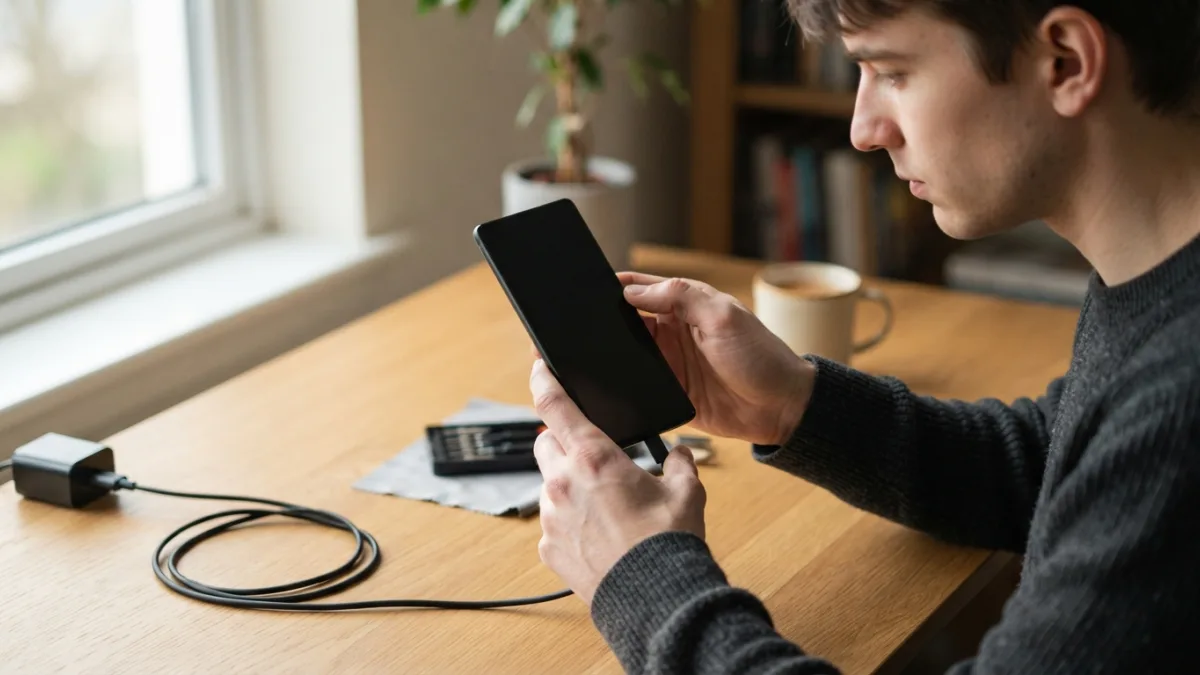
How to Fix an Android Phone That Won’t Turn On
That sinking feeling when you press the power button and nothing happens is something almost every smartphone owner has experienced at least once. Your screen stays black, no vibration, no chime, nothing. Before you panic and assume you need a costly repair or a brand-new device, know that plenty of people manage to fix an Android phone that won’t turn on using simple troubleshooting steps at home. Dead screens can result from software glitches, charging problems, or hardware faults, and each cause has its own fix. This guide walks you through the most common solutions, starting with the easiest ones, so you can get your phone back to life without wasting money on unnecessary repairs.
Start With the Basics: Check the Charging Situation
Before assuming the worst, rule out something as simple as a dead battery. Plug your phone into the charger and let it sit for at least 15 to 20 minutes before trying to turn it on again. Sometimes a completely drained battery needs a few minutes of charging before the device even shows signs of life, like a charging icon or a small vibration. If nothing happens, try a different charging cable and a different wall adapter, since faulty cables are one of the most overlooked reasons a phone won’t charge. Also inspect the charging port for lint, dust, or debris that could be blocking the connection. A toothpick or a can of compressed air can clear out buildup without damaging the port. If you want to dig deeper, our guide on How to Free Up Storage Space on Your Android Phone Fast covers this in more detail. This is a common part of dealing with fix an android phone, and it is worth keeping in mind.
Rule Out a Faulty Charging Port or Cable
If your phone shows no response even after using different cables and adapters, the charging port itself might be the culprit. Ports get damaged over time from constant plugging and unplugging, or from moisture exposure. Try plugging your phone into a computer using a USB cable instead of a wall charger; if you notice any connection sound or see a battery icon appear, that tells you the port is at least partially working. If you have access to a wireless charger and your phone supports it, that’s another way to test whether the issue lies specifically with the charging port. When a damaged port turns out to be the problem, a visit to a repair shop is usually necessary, since this kind of fix involves opening the device. Many people run into this exact issue with fix an android phone at some point.
Try a Forced Restart
A forced restart is one of the most effective tricks to fix an android phone that seems completely unresponsive, and it doesn’t erase any data. The exact button combination varies depending on the brand and model, but most modern Android phones follow a similar pattern. This method essentially reboots the internal system without needing the phone to be in a normal “on” state, which makes it useful when the screen looks dead but the hardware might still be functioning. Give the phone at least 20 to 30 seconds after pressing the buttons before letting go, since some devices take a moment to respond. Keeping fix an android phone in mind here will save you time later on.
- Samsung devices: Press and hold the Volume Down button and the Power button together for about 10 seconds.
- Google Pixel phones: Hold the Power button for 10 to 15 seconds until the screen flickers or restarts.
- Other brands like Motorola, LG, or OnePlus: Hold Power and Volume Down simultaneously for 10 to 20 seconds.
Look Closely at an Android Phone Black Screen
Sometimes the phone isn’t actually off at all. An android phone black screen can happen while the device is technically still running in the background, especially after a software crash or an app that froze the display. Try pressing the power button once, then wait a few seconds, and press it again. You can also try connecting the phone to a charger and watching for any LED light, vibration, or sound that indicates it’s alive but just not displaying anything visually. If you hear notification sounds when someone calls or texts you, that’s a strong clue the screen itself, not the whole system, is the problem. In that case, the fix likely involves a professional screen replacement rather than a software reset. This connects closely with another common issue — see How to Set Up Parental Controls on Android for more on that. This detail matters more than it seems once fix an android phone comes up again.
Dealing With an Android Boot Loop
An android boot loop happens when your phone keeps restarting over and over, showing the logo screen but never fully loading. This is frustrating because the phone seems “on” but never actually becomes usable. Boot loops are often caused by a corrupted app update, a failed system update, or storage that’s become too full to allow proper booting. One common fix is booting into Safe Mode, which loads the phone with only essential system apps running and can help you identify whether a third-party app is causing the crash. If Safe Mode loads fine, try uninstalling any apps you installed recently, especially ones you added right before the boot loop started. It is one of those small things that makes fix an android phone easier to manage overall.
How to Enter Safe Mode
- Press and hold the Power button until the power menu appears.
- Press and hold the “Power off” option until you see a prompt asking if you want to reboot into Safe Mode.
- Tap “OK” and wait for your phone to restart with Safe Mode displayed in the corner of the screen.
When a Hard Reset Android Becomes Necessary
If none of the previous steps work, a hard reset android procedure, also called a factory reset, might be your next option. This wipes all data and returns the phone to its original settings, so only use this method if you’ve backed up your files or you’re prepared to lose them. Most Android phones let you access the recovery mode menu by holding a combination of the Power button and Volume Up or Volume Down button while the device is off. From there, you can navigate using the volume buttons and select options with the power button, choosing “Wipe data/factory reset” from the recovery menu. This process can take several minutes, so avoid interrupting it once it begins, as doing so could cause further software damage. This is a common part of dealing with fix an android phone, and it is worth keeping in mind.
Check for Battery Swelling or Physical Damage
Sometimes the problem isn’t software at all but a hardware issue you can actually see or feel. A phone battery not charging properly might be swollen, which you can sometimes notice if the back cover looks slightly raised or the screen appears to be lifting away from the frame. Swollen batteries are a safety hazard and should never be pierced, bent, or exposed to heat. If you drop your phone recently or exposed it to water, internal damage might be preventing it from powering on, even if the outside looks fine. In these situations, stop trying more troubleshooting steps and take the device to a professional technician instead, since attempting further fixes at home could make the situation worse or even dangerous. You might also find our article on How to Fix Wi-Fi Problems on Android helpful here. Many people run into this exact issue with fix an android phone at some point.
Test With a Different Charger and Outlet
It sounds almost too simple, but plenty of people fix an Android phone problem just by switching to a different power source. Wall outlets can be faulty, power strips can lose functionality over time, and even USB ports on laptops sometimes don’t deliver enough power to charge a phone properly. Try plugging your phone into a different outlet altogether, ideally one you know works with another device. If you have access to a friend’s charger or a different brand of charging cable, test that as well. Cheap or damaged cables are notorious for looking fine on the outside while failing to transmit power correctly on the inside. Keeping fix an android phone in mind here will save you time later on.
When to Visit a Professional Repair Shop
If you’ve tried charging, forced restarts, Safe Mode, and even a factory reset without success, it’s probably time to consult a professional. Look for a repair shop with good reviews and experience with your specific phone brand, since internal components vary quite a bit between manufacturers. Ask about diagnostic fees upfront, since some shops charge a flat rate just to look at the device before giving you a repair estimate. If your phone is still under warranty, contacting the manufacturer directly might save you money compared to a third-party repair shop. Many brands, including Samsung and Google, offer mail-in repair services or authorized repair centers that use original parts, which can be worth the extra wait time for peace of mind. This detail matters more than it seems once fix an android phone comes up again.
Preventing Future Power Issues
Once you manage to fix an Android phone that wouldn’t turn on, a few habits can help you avoid repeating the experience. Avoid letting your battery drain completely on a regular basis, since deep discharges over time can shorten battery lifespan. Keep your software updated, since manufacturers regularly release patches that fix bugs related to charging and system stability. Clean your charging port occasionally with a soft brush or compressed air to prevent dust buildup that interferes with connections. It also helps to avoid cheap, uncertified charging cables and adapters, since these are more likely to damage your battery or charging port over time compared to certified accessories from reputable brands. For a related walkthrough, check out How to Transfer Files Between Android and PC (No App Needed). It is one of those small things that makes fix an android phone easier to manage overall.
Frequently Asked Questions
Why does my Android phone show a black screen but still vibrate?
This usually means the phone is running but the display itself has failed or the screen has frozen. Try a forced restart first, and if the vibration continues without any picture returning, the screen may need professional repair. This is a common part of dealing with fix an android phone, and it is worth keeping in mind.
Can a hard reset fix a phone that won’t turn on at all?
A hard reset android through recovery mode can solve issues caused by software corruption or failed updates, but it won’t help if the problem is related to a dead battery, damaged charging port, or hardware failure. Many people run into this exact issue with fix an android phone at some point.
How long should I charge a completely dead phone before trying to turn it on?
Give it at least 20 to 30 minutes on the original charger and outlet before attempting to power it on. Some phones need a small percentage of charge before the screen or system can respond. Keeping fix an android phone in mind here will save you time later on.
Is it safe to keep charging a phone stuck in a boot loop?
Yes, charging it while attempting fixes like Safe Mode or a factory reset is generally safe and can even help since boot loops often drain battery quickly. Just monitor the device for excessive heat, which could indicate a separate hardware issue. This detail matters more than it seems once fix an android phone comes up again.
When should I stop troubleshooting and see a repair technician?
If you notice a swollen battery, water damage, physical cracks, or the phone still won’t respond after a factory reset and multiple charging attempts, it’s time to consult a professional rather than risk further damage. It is one of those small things that makes fix an android phone easier to manage overall.



3 Comments
Comments are closed.