
If you have ever handed your phone to your kid for “just five minutes” and then found them thirty minutes deep into a mystery app, you already know why parental controls matter. Apple actually built a very powerful, completely free tool right into every iPhone called Screen Time, and most parents do not even realize how much it can do. It can limit app usage, block adult content, manage contacts, set downtime hours, and even stop in-app purchases from draining your bank account. The best part is that you do not need to be a tech wizard to set it up. In this guide, we will walk through everything step by step, in plain language, so you can feel confident putting the right boundaries in place for your child.
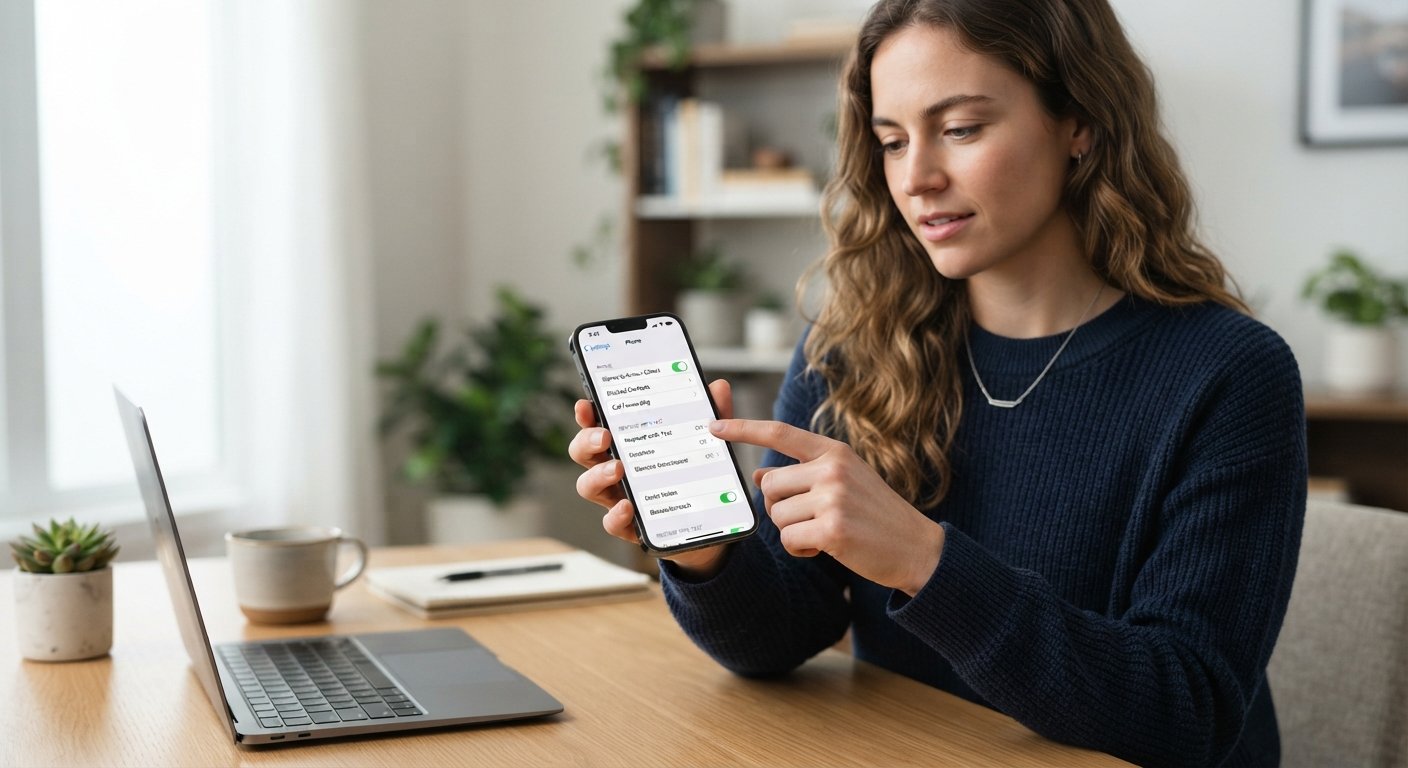
The first thing you need to decide is whether you are setting up Screen Time on your child’s own iPhone or managing it remotely through Family Sharing, which is Apple’s system for linking family members’ accounts together. If your child has their own device, go to Settings, tap Screen Time, then tap “Turn On Screen Time.” You will be asked whether this is “This is My iPhone” or “This is My Child’s iPhone.” Choose the second option. From there, Apple will guide you to set a Screen Time passcode, which is a separate four-digit code from your regular lock screen passcode. This code is important because it prevents your child from simply turning off the restrictions you just created. Make sure it is a number your child cannot easily guess, and avoid using the same code as your phone unlock passcode.
Once Screen Time is active, you can start customizing what your child can and cannot do. Tap “Content & Privacy Restrictions” to block explicit websites, restrict app store downloads by age rating, and prevent changes to privacy settings like location sharing or camera access. Under “App Limits,” you can set daily time limits for categories like games or social media, so your child gets a gentle reminder when their time is up instead of endless scrolling. The “Downtime” feature is especially useful for bedtime routines, since it lets you schedule hours when only approved apps, like phone calls or educational tools, remain available. You can also use “Communication Limits” to control who your child can call, message, or receive calls from during both regular hours and downtime, which adds an extra layer of safety for younger users.
For families using Family Sharing, the process becomes even easier because you can manage everything from your own iPhone instead of handing over your child’s device. Open Settings, tap your name at the top, then tap “Family Sharing” and make sure your child is added as a family member. Once that is done, go back to Settings, tap Screen Time, and you will see your child’s name listed under “Family.” Tapping their name lets you adjust all the same settings mentioned above, remotely and in real time. This is particularly handy because you can also see weekly reports showing exactly how much time your child spends on each app, which apps they use most, and how often they pick up their phone. These reports are not about spying, but about starting honest conversations with your child about healthy screen habits.
Setting up parental controls is not about controlling every second of your child’s day, but about creating a safer, more balanced digital environment as they grow. Technology changes fast, and children are often more curious and tech savvy than we expect, so revisiting these settings every few months is a smart habit. Talk openly with your kids about why these limits exist, rather than presenting them as punishment, since understanding builds trust and cooperation. Apple updates iOS regularly, so menu names and options might shift slightly over time, but the core Screen Time features remain reliable and easy to find. With just a few minutes of setup, you can give yourself real peace of mind while helping your child build a healthier relationship with their iPhone.
Frequently Asked Questions
Can my child remove or bypass Screen Time restrictions?
Not easily, as long as you keep the Screen Time passcode private. Without this code, your child cannot disable restrictions, extend time limits, or delete the Screen Time settings entirely.
What happens if I forget my Screen Time passcode?
Do not worry, this happens often. You can reset it using your Apple ID by tapping “Forgot Passcode?” within the Screen Time settings menu, which will guide you through a secure recovery process.
Does Screen Time work on iPads too?
Yes, Screen Time works the same way on iPads as it does on iPhones. If your family uses multiple Apple devices, Family Sharing ensures the settings apply consistently across all of them.
Can I block specific apps completely instead of just limiting their time?
Absolutely. Under Content & Privacy Restrictions, you can turn off access to specific apps entirely, hiding them from the home screen so your child cannot open them at all.
Will my child know I am checking their Screen Time reports?
They can see their own weekly report on their device, but they will not receive a notification when you check it from your phone through Family Sharing, so you can monitor quietly if needed.