How to Fix an iPhone Stuck on the Apple Logo
You press the power button, the familiar silver Apple appears on your screen, and then… nothing. Minutes pass, and your phone is still frozen on that same logo with no progress bar in sight. Being stuck on Apple logo is one of the most common iPhone problems, and it can happen to any model, from an old iPhone 8 to the newest iPhone 15. The good news is that this issue rarely means your phone is broken beyond repair. In most cases, it’s a software hiccup that you can fix at home in a few minutes, without needing to visit an Apple Store or spend any money.
Why Is Your iPhone Stuck on the Apple Logo?
Before jumping into fixes, it helps to understand what causes this problem in the first place. Most of the time, an iPhone gets stuck on Apple logo because something went wrong during a software update or restore process. A corrupted file, a failed installation, or even a battery that ran out mid-update can leave your phone in this odd, frozen state. Sometimes it happens after you install a jailbreak tweak or restore a backup that isn’t fully compatible with your current iOS version. Physical damage, like water exposure or a hard drop, can also trigger this problem, though that’s less common. Either way, the screen you’re staring at is really just a symptom, not the actual issue, so the fixes below focus on getting your system back on track. If you want to dig deeper, our guide on How to Fix an iPhone That Won't Turn On covers this in more detail. This is a common part of dealing with stuck on apple logo, and it is worth keeping in mind.
Start With a Simple Force Restart
The first thing you should try, before anything more complicated, is a force restart. This isn’t the same as a regular restart, and it’s specifically designed to interrupt a frozen state without deleting any of your data. Think of it as the digital equivalent of unplugging a stuck computer and plugging it back in, except it’s safe to do on an iPhone. Many people panic and assume their phone is dead when in reality a simple button sequence solves the problem within seconds. It sounds too easy to work, but for a huge percentage of users, this step alone gets rid of the frozen Apple logo for good. Many people run into this exact issue with stuck on apple logo at some point.
How to Force Restart Depending on Your Model
- iPhone 8 or later (including iPhone SE 2nd/3rd generation): Press and quickly release the volume up button, then press and quickly release the volume down button, then press and hold the side button until the Apple logo appears.
- iPhone 7 and iPhone 7 Plus: Press and hold both the side button and the volume down button at the same time until you see the Apple logo.
- iPhone 6s and earlier, including the original iPhone SE: Press and hold both the home button and the top (or side) button together until the logo appears.
If your phone reboots and starts up normally after this, great news, you’re done. If it’s still stuck on Apple logo after a couple of attempts, don’t keep repeating the same sequence over and over. Move on to the next set of solutions, which involve slightly more advanced troubleshooting but are still very manageable for the average user. Keeping stuck on apple logo in mind here will save you time later on.
Check Your Charging Cable and Power Source
It sounds almost too simple, but a weak or unreliable power source is sometimes the real culprit. If your iPhone won’t turn on properly or keeps getting stuck during boot, try a different charging cable and a different wall adapter. Some cheap or damaged cables deliver inconsistent power, which can interrupt the boot process right as the phone tries to load iOS. Plug your iPhone into the wall directly rather than through a computer’s USB port, since computer ports often provide less power. Let it charge for at least 15 to 20 minutes before attempting anything else. A phone with a dangerously low battery can display the Apple logo and then freeze simply because it doesn’t have enough power to finish starting up. This connects closely with another common issue — see How to Find a Lost or Stolen iPhone for more on that. This detail matters more than it seems once stuck on apple logo comes up again.
Use Recovery Mode to Reinstall iOS
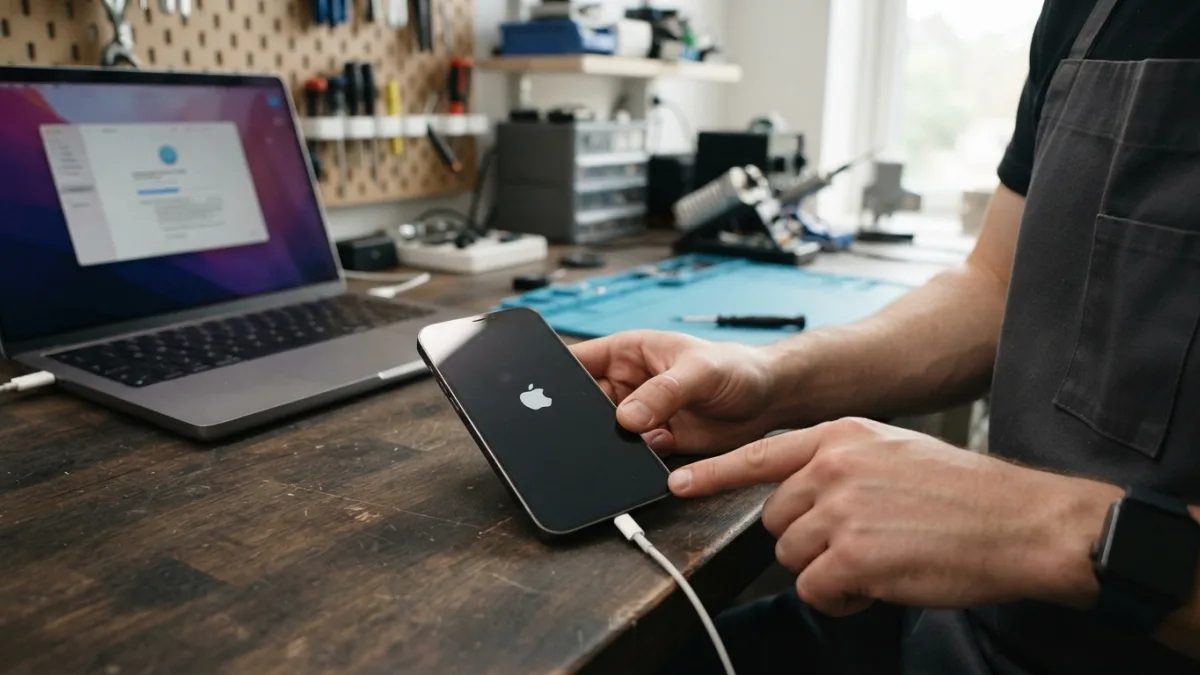
If force restarting didn’t help, the next step is iPhone recovery mode. This built-in tool lets you reinstall iOS through your computer using Finder on a Mac or iTunes on a Windows PC, without necessarily erasing your personal data, though it’s smart to have a backup just in case. Recovery mode is designed exactly for situations like this, where the normal boot process has broken down and the device needs a fresh copy of its operating system files. It sounds intimidating if you’ve never done it before, but the process is mostly guided by your computer once you connect the phone correctly. It is one of those small things that makes stuck on apple logo easier to manage overall.
Steps to Enter Recovery Mode
- Connect your iPhone to a computer with a Lightning or USB-C cable, but don’t open iTunes or Finder yet.
- Force restart your iPhone using the button sequence for your model, but instead of releasing the side button when the Apple logo appears, keep holding it.
- Continue holding until you see the recovery mode screen, which shows a computer icon and a cable.
- Open iTunes (Windows) or Finder (Mac) on your computer, and you should see a pop-up asking to Update or Restore your iPhone.
- Choose Update first, since this reinstalls iOS without erasing your data. If that fails or isn’t offered, choose Restore instead.
This process can take anywhere from a few minutes to half an hour, depending on your internet speed and how much data needs to be downloaded. Don’t disconnect the cable or close the program while it’s working, even if it looks like nothing is happening for a while. Interrupting this step can make the problem worse, so patience really matters here. This is a common part of dealing with stuck on apple logo, and it is worth keeping in mind.
How to Restore iPhone via iTunes When Update Doesn’t Work
Sometimes the Update option in recovery mode fails, gets stuck, or throws an error message partway through. When that happens, your best option is to restore iPhone via iTunes or Finder using the Restore option instead. Keep in mind this erases everything on the device and sets it up as new, which is why having a recent backup in iCloud or on your computer is so important. Once the restore finishes, you’ll go through the standard setup screens, and you’ll have the choice to restore from a backup or start fresh. Many users find that setting up as new first, checking that everything works, and then restoring the backup afterward avoids reintroducing whatever corrupted file caused the original freeze. You might also find our article on How to Fix Wi-Fi Problems on Your iPhone helpful here. Many people run into this exact issue with stuck on apple logo at some point.
Dealing With an iPhone Boot Loop
An iPhone boot loop is a particularly frustrating version of this problem, where your phone shows the Apple logo, tries to boot, restarts itself, and repeats the cycle endlessly. This usually points to a deeper software conflict, often triggered by a failed iOS update or a corrupted system file that keeps crashing the startup process. The force restart and recovery mode steps mentioned earlier still apply here and solve the majority of boot loop cases. If those don’t work, there’s a more aggressive option called DFU mode, short for Device Firmware Update, which performs an even deeper reinstall of the software than standard recovery mode. DFU mode is trickier to enter correctly since the timing of the button presses matters a lot, and it’s worth searching for the exact steps for your specific model before attempting it, since Apple has changed the sequence across different iPhone generations. Keeping stuck on apple logo in mind here will save you time later on.
When It’s an iPhone Software Update Issue
A huge number of Apple logo freezes trace back to a botched iPhone software update issue, especially when people update over a weak WiFi connection or with low battery. If your phone got stuck right after you tapped Install on a new iOS version, this is almost certainly what happened to you. The recovery mode fix described above is the direct solution in this scenario, since it essentially forces a clean reinstall of the update that failed. Going forward, it helps to always charge your phone to at least 50% and connect to reliable WiFi before installing any major iOS update, since interrupted downloads are a leading cause of this exact problem. It’s a small habit, but it saves a lot of frustration later. This detail matters more than it seems once stuck on apple logo comes up again.
What to Do If Nothing Works
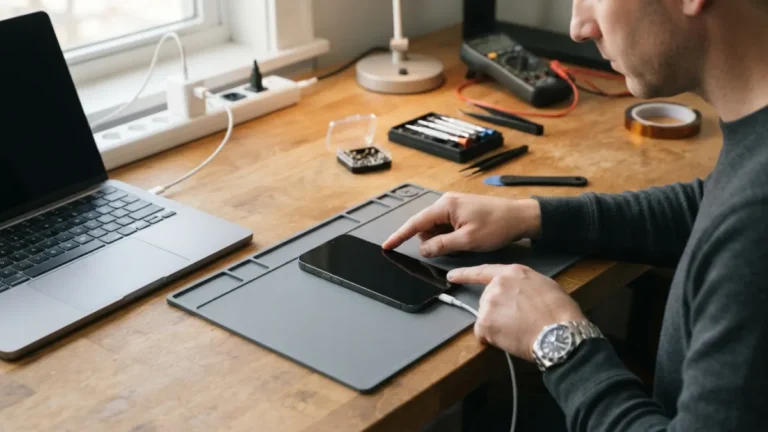
If you’ve tried force restarting, recovery mode, restoring through iTunes, and even DFU mode, and your iPhone is still stuck on Apple logo, the problem might be hardware related rather than software related. Water damage, a failing battery, or a hardware component that’s physically breaking down can all mimic the symptoms of a software freeze, but no amount of restoring will fix them. At this point, contacting Apple Support directly or visiting an Apple Store’s Genius Bar is the smart move. Bring your proof of purchase if you have it, and mention every troubleshooting step you’ve already tried, since this saves time and helps the technician diagnose the real issue faster. If your phone is still under warranty or covered by AppleCare, repairs may cost little or nothing at all. For a related walkthrough, check out How to Transfer Everything to a New iPhone Without Losing Data. It is one of those small things that makes stuck on apple logo easier to manage overall.
Preventing This Problem in the Future
Once you get your iPhone working again, a few simple habits can lower the odds of this happening a second time. Keep regular backups through iCloud or your computer, so a freeze never means losing your photos, messages, or app data. Avoid interrupting iOS updates once they’ve started, and don’t unplug your phone or force restart it mid-update just because it seems slow. Keep your software reasonably current instead of skipping several versions at once, since jumping too many updates in a single install sometimes causes more errors. Finally, if you ever notice your phone acting sluggish, crashing apps repeatedly, or struggling to charge, address those small warning signs early rather than waiting for a full freeze to force your hand. This is a common part of dealing with stuck on apple logo, and it is worth keeping in mind.
Frequently Asked Questions
Why is my iPhone stuck on Apple logo after an update?
This usually happens when the update process gets interrupted by low battery, weak WiFi, or a corrupted download. Using recovery mode to reinstall iOS through Finder or iTunes almost always resolves it. Many people run into this exact issue with stuck on apple logo at some point.
Will I lose my data if my iPhone is stuck on the Apple logo?
Not necessarily. A force restart or the Update option in recovery mode typically keeps your data intact. Only the Restore option, or a DFU mode reinstall in some cases, erases the device completely. Keeping stuck on apple logo in mind here will save you time later on.
How long can an iPhone stay stuck on the Apple logo before it’s a serious problem?
If it hasn’t budged after 15 to 20 minutes, it’s time to try a force restart. If that fails, move on to recovery mode rather than waiting indefinitely, since the phone won’t fix itself on its own. This detail matters more than it seems once stuck on apple logo comes up again.
Can a bad battery cause an iPhone to get stuck on the Apple logo?
Yes. A weak or failing battery sometimes can’t supply enough consistent power to complete the boot process, causing the phone to freeze or loop repeatedly on the logo screen. It is one of those small things that makes stuck on apple logo easier to manage overall.
What’s the difference between recovery mode and DFU mode?
Recovery mode reinstalls iOS while still relying on some existing device software, while DFU mode performs a deeper, lower-level reinstall that bypasses the boot loader entirely. DFU mode is a stronger fix but should be tried only after recovery mode fails. This is a common part of dealing with stuck on apple logo, and it is worth keeping in mind.