
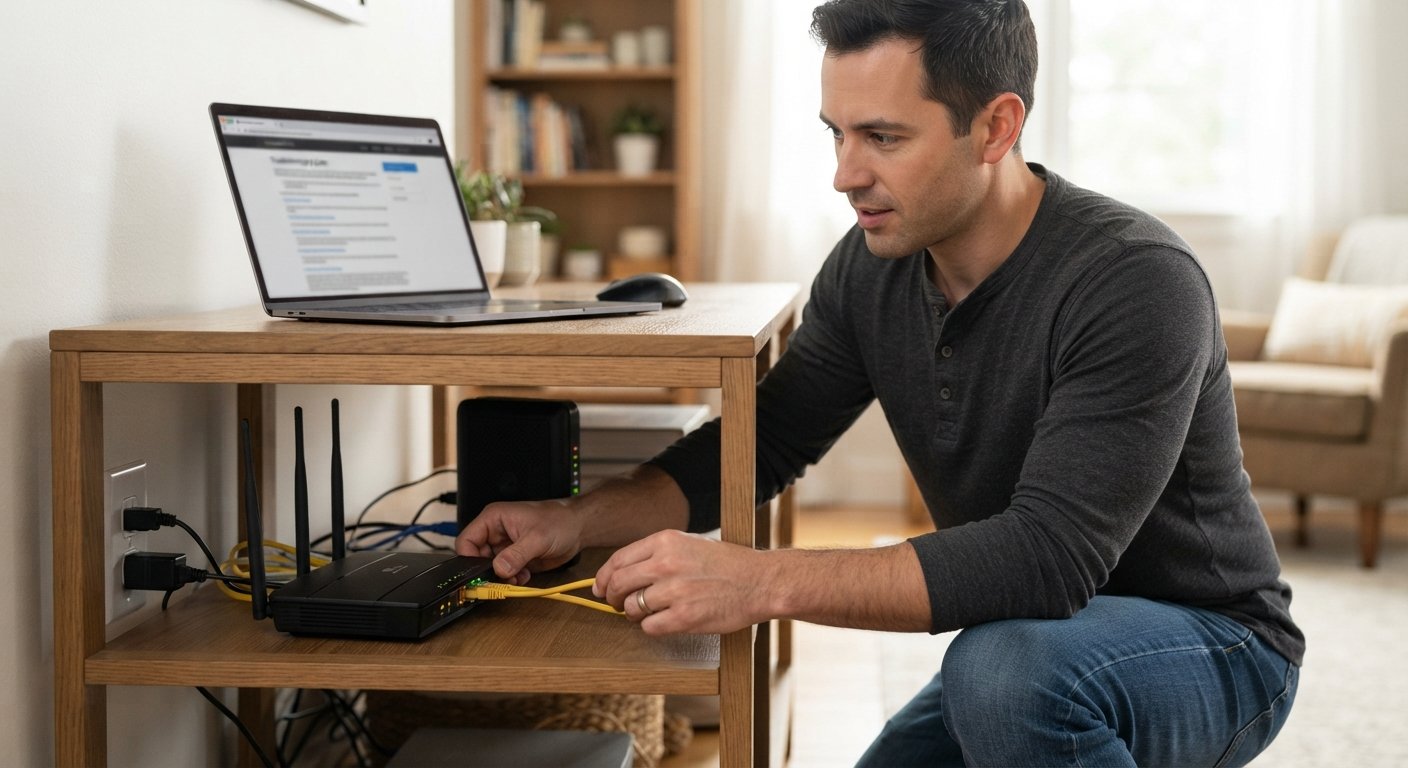
There’s nothing more frustrating than sitting down to watch your favorite show, send an important email, or join a video call, only to find that your Wi-Fi has decided to stop working. Before you panic, call your internet provider, or throw your router out the window, take a breath. Most Wi-Fi problems are actually quite simple to fix, and you don’t need to be a tech expert to solve them. In fact, a huge number of connection issues can be resolved in just a few minutes by checking some basic things most people overlook. This guide walks you through six easy checks that will help you get back online quickly, without any confusing technical steps. Let’s troubleshoot your Wi-Fi together, one simple step at a time.
1. Restart Your Router and Modem
This might sound too simple to work, but restarting your router (the device that creates your Wi-Fi signal) and your modem (the device that connects your home to the internet) fixes the majority of connection problems. Over time, these devices can get overloaded with small errors, similar to how your phone or computer sometimes needs a fresh restart to run smoothly again. To do this properly, unplug both devices from the power outlet, wait about 30 seconds, then plug the modem back in first. Wait for it to fully reconnect, which usually takes a minute or two, then plug the router back in. This process is often called “power cycling,” and it clears out temporary glitches without deleting any of your settings. Many internet providers actually recommend this as the very first troubleshooting step because it works so often. If your internet suddenly comes back to life after this simple restart, you’ve saved yourself a lot of time and stress that could have gone into unnecessary troubleshooting.
2. Check for an Outage in Your Area
Sometimes the problem isn’t with your equipment at all, it’s with your internet service provider (ISP). Companies occasionally experience outages due to maintenance work, storms, or technical issues on their end, and there’s nothing you can do to fix that from your side. Before spending time checking cables or settings, it’s worth confirming whether this is the case. Most providers have a website or app where you can check the current status of your service, and a quick search like “[your provider name] outage” often brings up recent reports from other affected customers. You can also try checking your phone’s mobile data to see if other websites load normally, which helps confirm whether the issue is really about your internet connection specifically. If there is a confirmed outage, the best thing to do is simply wait it out, since the company is already working to fix it. Knowing this in advance can save you the frustration of troubleshooting something that was never actually broken on your end.
3. Make Sure You’re Connected to the Right Network
It sounds obvious, but this is one of the most common reasons people think their Wi-Fi isn’t working, when really, their device is just connected to the wrong network. Many homes have multiple Wi-Fi signals, especially if you have a dual-band router that broadcasts both a 2.4GHz and a 5GHz network, or if a neighbor’s network appears in your list of available connections. Double-check your device’s Wi-Fi settings to confirm you’re connected to your own network and not accidentally connected to a guest network, an old saved network, or a completely different signal. It’s also worth checking if you’ve entered the correct password recently, since sometimes routers get reset and passwords change without you noticing. If you’re using a laptop, tablet, or smartphone, try forgetting the network on your device and reconnecting from scratch, as this can resolve small connection errors that build up over time. This simple check takes just a few seconds but solves the issue surprisingly often.
4. Look at the Physical Cables and Router Lights
Sometimes the fix is much simpler than a software glitch, it’s a loose or disconnected cable. Take a moment to check that all cables connecting your modem and router are firmly plugged in, since even a slightly loose cable can cause your internet to drop. While you’re at it, take a look at the small lights on the front of your router. These lights usually indicate the status of your internet connection, and most manufacturers provide a guide (either printed on the device or available online) explaining what each color or blinking pattern means. Typically, a solid green or blue light means everything is working properly, while a red, orange, or blinking light can signal a problem. If you notice any lights that seem unusual compared to normal, this could point you directly toward the source of the problem, whether it’s a cable issue, an outage, or something else entirely. Taking 30 seconds to visually inspect your setup can save you a lot of unnecessary guesswork later.
5. Move Closer to the Router or Remove Obstacles
Wi-Fi signals can be weakened by distance and physical obstacles like walls, floors, furniture, and even large appliances. If you’re experiencing slow speeds or a signal that keeps dropping rather than a complete loss of connection, try moving closer to your router to see if things improve. Thick walls, metal objects, and even other electronic devices like microwaves and baby monitors can interfere with your Wi-Fi signal, especially if your router uses the 2.4GHz frequency, which is more prone to interference but travels further, compared to 5GHz, which is faster but doesn’t reach as far. If you find that certain rooms in your home consistently have weak signal, it might be worth considering a Wi-Fi extender or a mesh system, which are additional devices that help spread the signal more evenly throughout your home. For now, though, simply relocating yourself or your device closer to the router can help you determine whether distance is the real culprit behind your connection troubles.
6. Restart the Device You’re Using, Not Just the Router
It’s easy to assume that Wi-Fi problems always come from the router, but sometimes the issue is actually with the device you’re trying to connect, whether that’s your laptop, phone, smart TV, or tablet. Just like your router, these devices can develop small software glitches that interfere with their ability to connect properly to a network. Try turning your device’s Wi-Fi off and back on again, or better yet, restart the device completely. This clears out any temporary errors and gives your device a fresh start when reconnecting to the network. If only one device is having trouble while everything else in your home connects fine, this is a strong sign that the problem is isolated to that specific device rather than your overall internet connection. Taking this simple step can save you from unnecessarily resetting your router or contacting your provider when the real fix was as easy as restarting your phone or computer.
Frequently Asked Questions
Why does my Wi-Fi keep disconnecting even after I restart my router?
This could be caused by outdated router firmware (the software that runs your router), too many devices connected at once, or interference from other electronics. Try updating your router’s firmware through its settings app, and disconnect devices you’re not currently using.
How do I know if the problem is my Wi-Fi or my internet provider?
Check if other devices in your home can connect to the same Wi-Fi network successfully. If none of them can connect, and your router lights look unusual, the problem is likely with your provider or your equipment rather than a single device.
Should I reset my router to factory settings if nothing else works?
A factory reset should be your last option, since it erases all your custom settings, including your Wi-Fi name and password. Try all other troubleshooting steps first, and only reset your router if your provider or a technician recommends it.
Why is my Wi-Fi slow in some rooms but fast in others?
This is usually caused by distance from the router or physical obstacles like walls and furniture blocking the signal. Moving your router to a more central location or adding a Wi-Fi extender can help improve coverage throughout your home.
When should I contact my internet provider for help?
If you’ve tried all six steps above and your Wi-Fi still isn’t working, it’s time to contact your provider. They can check for outages, run diagnostics remotely, or send a technician if there’s a hardware issue they can’t fix from their side.