You pick up your iPhone, and it’s already at 40 percent, even though you barely used it today. Sound familiar? You are not alone. Battery drain is one of the most common complaints iPhone users have, no matter which model they own. The good news is that most of the time, this problem has a simple explanation and an even simpler fix. Before you rush to buy a new battery or a new phone, it’s worth spending a few minutes checking some easy settings. In this guide, we will walk you through the most effective and beginner-friendly ways to stop your iPhone battery from draining too quickly. No technical experience needed, just follow along step by step.
Check Which Apps Are Draining Your Battery
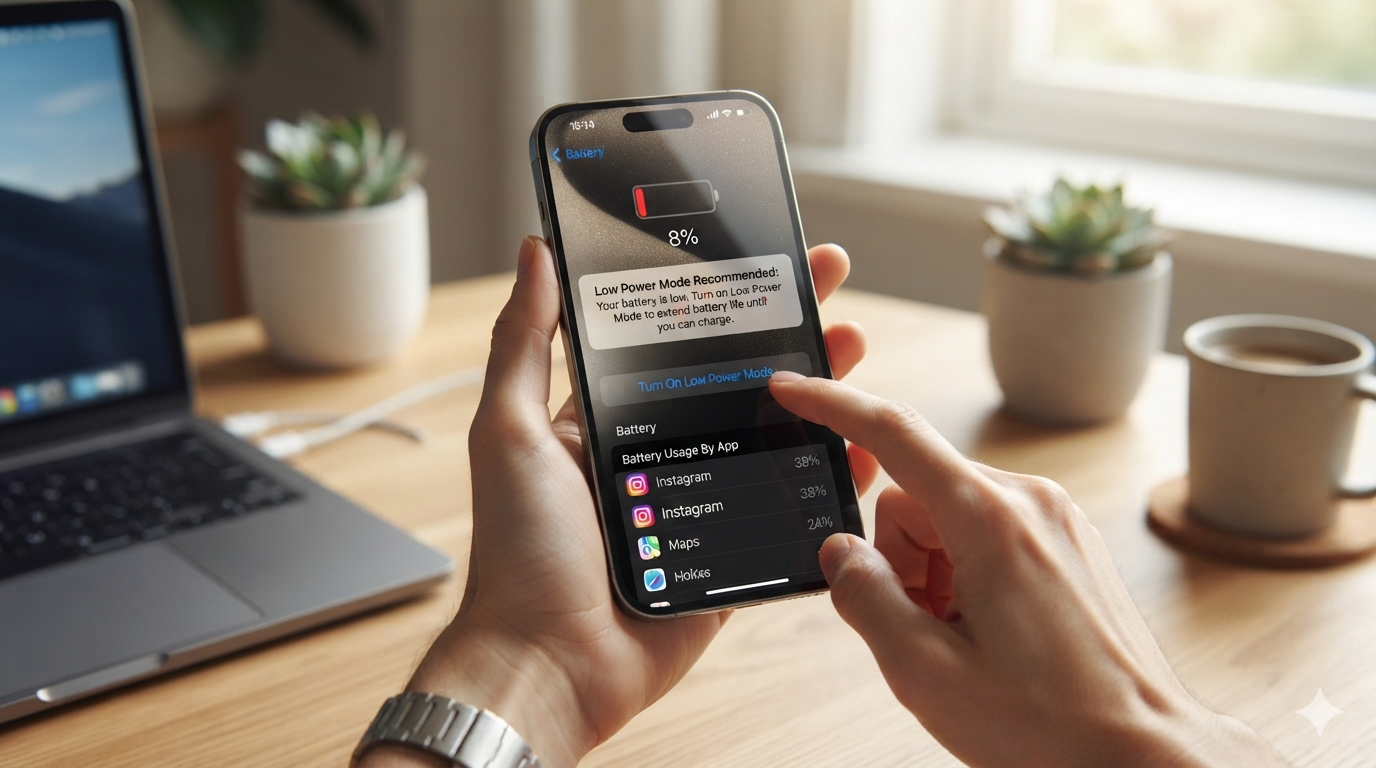
The first step is to find out what’s actually using your battery. Go to Settings, then Battery, and you will see a detailed breakdown of which apps have used the most power recently. Sometimes one app, like a game or a social media app, uses far more battery than expected, especially if it keeps running in the background. If you spot an app that seems to be using way more power than it should, consider closing it more often, updating it, or even deleting it if you don’t use it much. This simple check takes less than a minute but can reveal a lot about why your battery feels like it’s disappearing so fast.
Turn Down Your Screen Brightness
Your screen is one of the biggest battery users on your iPhone, especially if brightness is turned up high. Many people keep their screen brighter than necessary without even realizing it. Try lowering the brightness manually by swiping down from the top right corner of your screen and adjusting the slider. Even better, turn on Auto-Brightness in Settings, then Accessibility, then Display and Text Size, so your phone automatically adjusts the brightness based on your surroundings. This small change can make a noticeable difference over the course of a day. You will still be able to see your screen clearly, but your battery won’t have to work nearly as hard to keep it lit up.
Manage Background App Activity
Many apps continue running in the background even when you are not actively using them, refreshing content and using battery life without you noticing. This feature is called Background App Refresh, and it’s often the hidden reason behind fast battery drain. To manage it, go to Settings, then General, then Background App Refresh. From there, you can turn it off completely or choose which apps are allowed to keep refreshing in the background. For most people, turning off this feature for apps you rarely use, like shopping or news apps, can save a surprising amount of battery without affecting how you use your phone day to day.
Turn On Low Power Mode
Apple built a very handy feature called Low Power Mode specifically for situations like this. It temporarily reduces background activity, visual effects, and some automatic downloads to help your battery last longer. You can turn it on by going to Settings, then Battery, and tapping Low Power Mode. Your iPhone will also usually offer to turn this on automatically when your battery drops to 20 percent. Many people assume this mode is only for emergencies, but it’s actually safe and useful to use anytime you want to stretch your battery a little further, whether you are traveling, at work, or simply having a long day away from a charger.
Update Your iPhone’s Software
Software updates are not just about new features, they often include important fixes for battery and performance issues too. If your iPhone is running on outdated software, it might be less efficient at managing power, which can lead to faster battery drain. To check for updates, go to Settings, then General, then Software Update. If an update is available, make sure your phone is charged or plugged in, then install it. Keeping your iPhone updated ensures you benefit from Apple’s ongoing efforts to fix bugs, improve battery efficiency, and patch any issues that could be silently draining your battery in the background without you realizing it.
Check Your Battery Health
All phone batteries wear out over time, and this is completely normal. To check how healthy your battery currently is, go to Settings, then Battery, then Battery Health and Charging. Here you will see a percentage that shows your battery’s maximum capacity compared to when it was new. If this number is significantly lower, like below 80 percent, it’s a strong sign that your battery has degraded and may need replacing. This is not something to worry about too much, since batteries naturally lose capacity with age and daily charging. If your battery health is low, contacting Apple or an authorized service provider is the safest next step.
Reduce Location Services Usage
Location Services allow apps to know where you are, which is useful for maps and weather apps, but many apps use this feature more than necessary, quietly draining your battery in the background. To manage this, go to Settings, then Privacy and Security, then Location Services. Here, you can see which apps are using your location and choose to allow access only while using the app, instead of all the time. This one adjustment can make a real difference, especially if you have several apps that don’t really need constant access to your location to function properly.
Disable Unnecessary Notifications
Every notification your iPhone receives wakes up the screen and processor briefly, and if you get dozens of notifications a day, this adds up quickly. Go to Settings, then Notifications, and review which apps are allowed to send you alerts. Turn off notifications for apps that are not essential, like games or promotional apps, and keep them only for things that truly matter, like messages or calls. This won’t just help your battery, it can also make your phone feel calmer and less distracting overall, giving you a better daily experience with fewer unnecessary interruptions throughout the day.
Restart Your iPhone Regularly
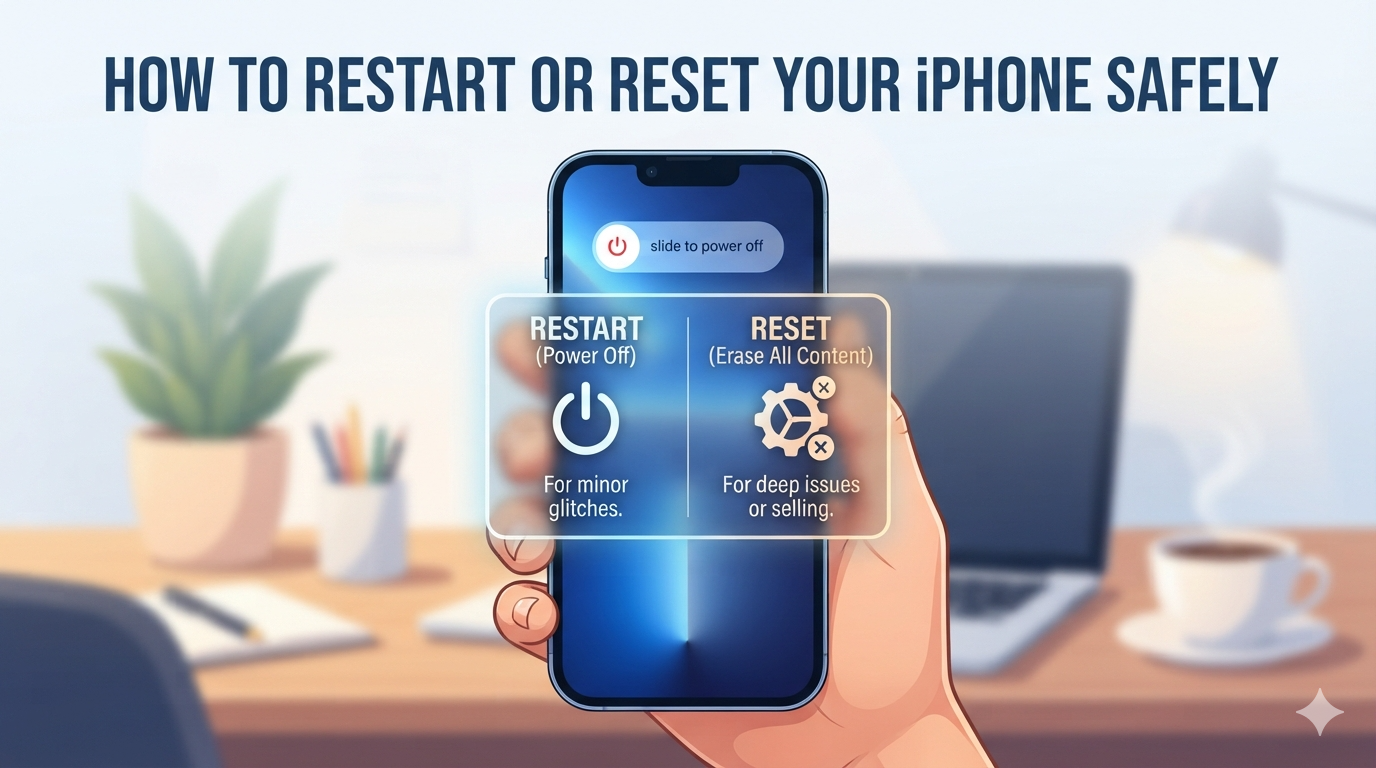
It might sound too simple to be true, but restarting your iPhone every so often can genuinely help with battery performance. Over time, apps and background processes can build up small glitches that affect how efficiently your phone runs. A simple restart clears out temporary issues and gives your phone a fresh start. To restart, press and hold the side button along with either volume button until the power slider appears, then slide to turn off, wait a few seconds, and turn it back on. Making this a small weekly habit can help keep your iPhone running smoothly and your battery performing at its best.
Frequently Asked Questions
Why is my iPhone battery draining so fast all of a sudden?
Sudden battery drain is often caused by a recently installed app, a software bug, or a background process using more power than usual. Checking your battery usage in Settings can help identify the exact cause.
Is it bad to charge my iPhone overnight?
No, modern iPhones are designed to handle overnight charging safely. They use smart charging features that slow down charging once the battery reaches 80 percent to reduce wear and protect long-term battery health.
How often should I replace my iPhone battery?
Most iPhone batteries last between two and three years with normal use. If your battery health drops below 80 percent or your phone struggles to last a day, it may be time for a replacement.
Does closing apps in the background help save battery?
Not usually. iPhones are designed to manage background apps efficiently on their own. Constantly closing apps can actually use more battery, since reopening them from scratch takes more power than resuming them.
Can extreme temperatures affect my iPhone’s battery life?
Yes, very hot or very cold environments can temporarily reduce battery performance and even cause faster drain. It’s best to avoid leaving your iPhone in direct sunlight or extremely cold conditions for long periods.