If you’re still using the same password for your email, your bank, and that one shopping site you signed up for five years ago, you’re not alone. Most people reuse passwords because remembering dozens of unique ones feels impossible. But here’s the good news: setting up a password manager takes less time than making a cup of coffee, and it instantly makes you safer online. In this guide, we’ll walk you through exactly how to do it, step by step, in about five minutes. No tech background needed. By the end, you’ll have a secure digital vault protecting all your accounts, and you’ll wonder why you didn’t do this sooner.
A password manager is simply an app that stores all your passwords in one secure, encrypted place. Instead of trying to remember fifty different passwords, you only need to remember one strong “master password” to unlock the vault. The app then fills in your login details automatically whenever you visit a website or open an app. Think of it like a digital keychain that holds every key you own, but locked behind one strong door that only you can open. This means you can finally stop reusing weak passwords and start using long, random, hard-to-guess ones for every single account, without ever having to memorize them yourself.
Step 1: Choose the Right Password Manager for You
There are several trustworthy password managers available, and most offer a free version that’s perfectly fine for everyday use. Popular choices include Bitwarden, Google Password Manager, Apple’s Keychain, and Dashlane. Bitwarden is a favorite among beginners because it’s free, open-source (meaning its code is publicly checked for safety), and works on nearly every device. If you’re deep in the Apple ecosystem, Apple’s built-in option is already on your iPhone and Mac. If you use Android and Chrome, Google’s Password Manager is already syncing your logins in the background. Pick one that matches the devices you use most often, since this will make setup and daily use much smoother.
Step 2: Download and Install the App
Once you’ve picked your password manager, head to its official website or your device’s app store, such as the Apple App Store or Google Play Store. Avoid downloading from random links or ads, since fake versions of popular apps do exist. Search for the app by name, confirm it’s from the official developer, and hit install. This step usually takes less than a minute, especially if you already have a stable internet connection. Most password managers also offer browser extensions, which are small add-ons for Chrome, Safari, or Firefox that let the app work directly inside your browser, so it can automatically fill in login forms as you browse the web.
Step 3: Create Your Master Password
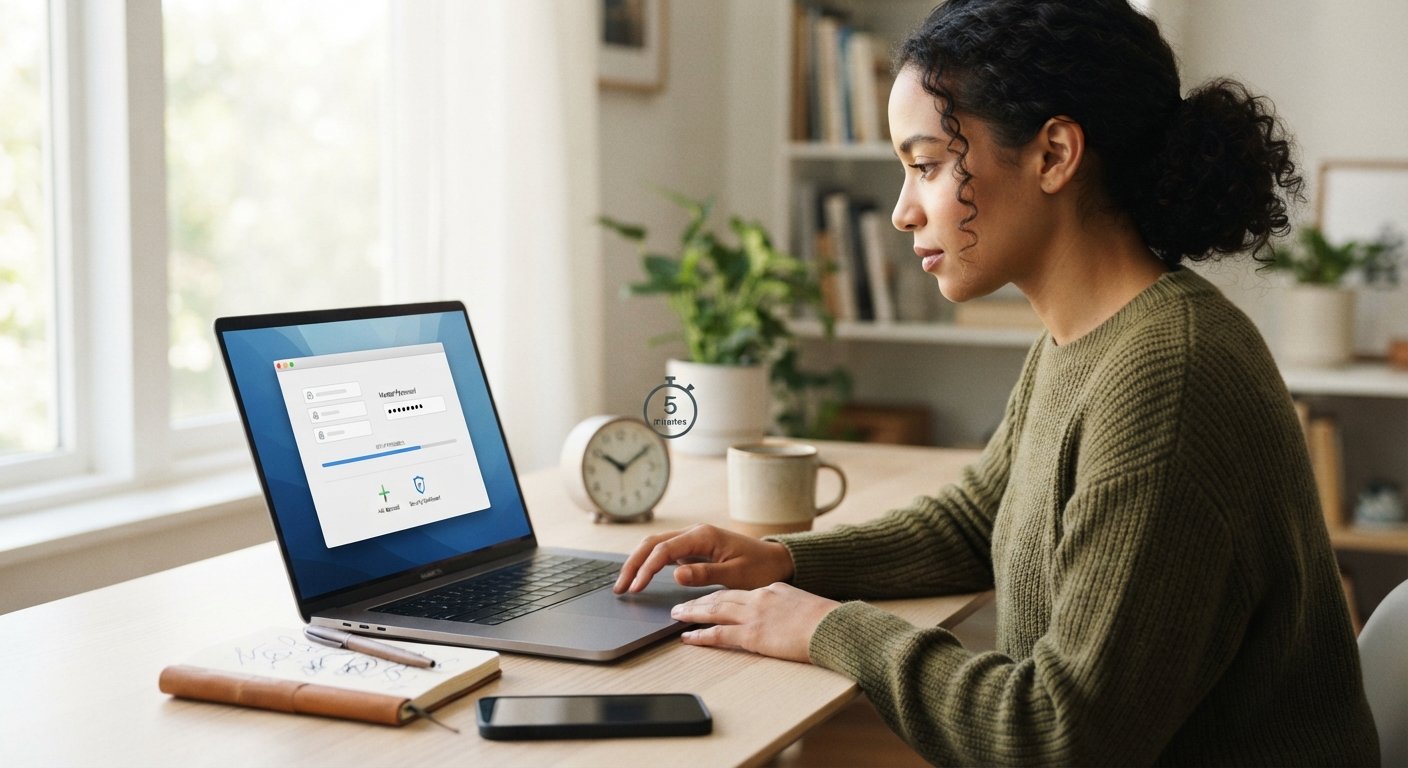
This is the most important step, so take a moment here. Your master password is the single key that unlocks everything else, so it needs to be strong and memorable, but never shared with anyone. A good trick is to string together three or four random words, like “purple7river!moonlight”, rather than using a short, complicated jumble of symbols that’s hard to recall. Avoid using personal information such as birthdays or pet names, since these can sometimes be guessed. Many apps will also suggest enabling two-factor authentication, an extra security step that asks for a code from your phone in addition to your password. Turning this on adds a valuable extra layer of protection.
Step 4: Import or Add Your Existing Passwords
Now it’s time to fill your new vault. Most password managers can automatically import passwords already saved in your browser, so you won’t have to type them all in manually. Look for an “import” option in the app’s settings menu, and follow the simple on-screen instructions. If you don’t have many saved passwords yet, don’t worry, you can simply add them as you log into your accounts over the next few days. The app will usually pop up and ask, “Would you like to save this password?” every time you log into a new site. Just click yes, and it will be safely stored for next time, saving you the hassle of typing it again.
Step 5: Turn On Autofill and Start Browsing Safely
The final step is enabling autofill, a feature that automatically types your username and password into login forms for you. This is usually found in the app’s settings under a name like “Autofill Service” or “Browser Integration.” Once turned on, you can visit any saved website, click the login field, and watch your password manager fill it in instantly. From here, you’re free to start replacing your old, weak, reused passwords with strong new ones the app can generate for you. Most password managers include a built-in password generator that creates long, random combinations of letters, numbers, and symbols, making each account far more difficult for hackers to break into.
Setting up a password manager is one of the simplest and most effective ways to boost your online safety, and now you’ve done it in just a few minutes. No more sticky notes, no more forgotten logins, and no more reusing the same risky password everywhere. As you continue using the internet, your vault will grow stronger and more complete, quietly protecting you in the background. It’s a small investment of time that pays off enormously in peace of mind. So go ahead, take a moment to enjoy that instant sense of relief, knowing your digital life is now much better protected than it was five minutes ago.
Frequently Asked Questions
Is it safe to store all my passwords in one app?
Yes. Reputable password managers use strong encryption, meaning your data is scrambled into unreadable code that only you can unlock with your master password. This is far safer than reusing weak passwords across multiple sites.
What happens if I forget my master password?
Most password managers offer a recovery option, such as a backup code or account recovery process, set up when you first create your vault. Still, it’s best to write your master password down somewhere safe, like a locked drawer, just in case.
Are free password managers good enough, or do I need to pay?
Free versions like Bitwarden, Google Password Manager, and Apple’s Keychain offer excellent protection for everyday use. Paid versions add extra features, like secure file storage or family sharing, but they aren’t essential for basic safety.
Can I use a password manager on my phone and computer at the same time?
Absolutely. Most password managers sync automatically across all your devices, so any password you save on your phone will also appear on your computer, and vice versa.
Will a password manager work on every website?
Yes, in almost all cases. Password managers work with virtually any website or app that requires a login. Occasionally, you may need to manually copy and paste a password, but autofill works smoothly on the vast majority of sites.