
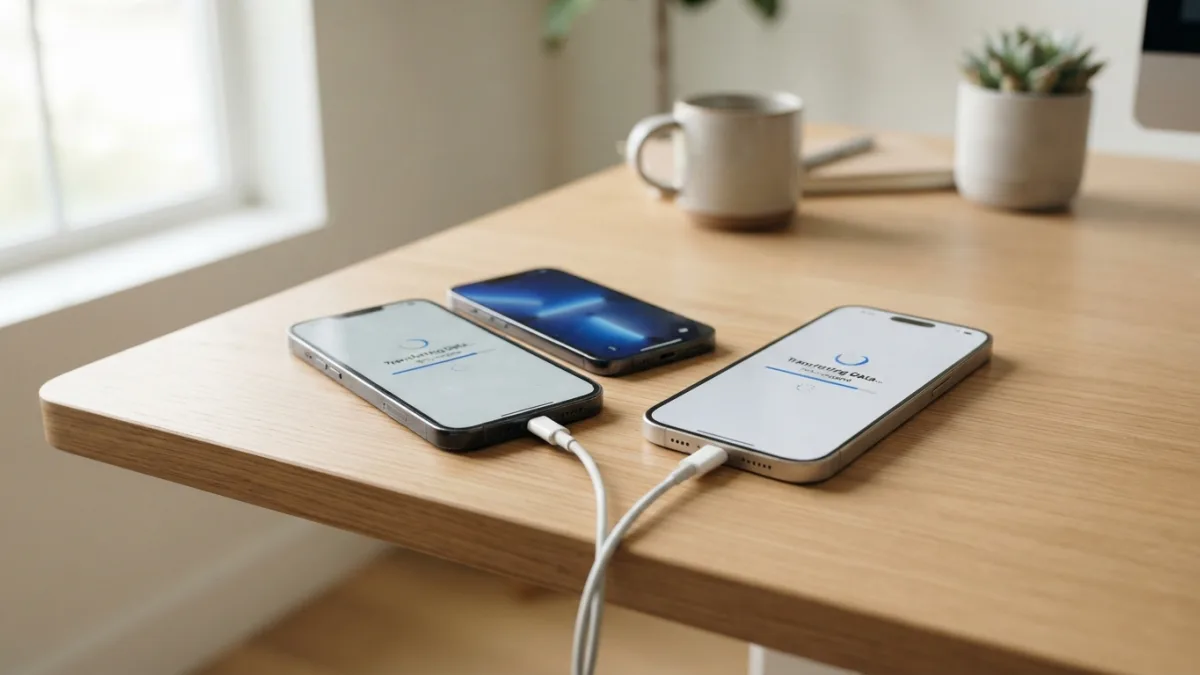
How to Transfer Everything to a New iPhone Without Losing Data
Getting a new iPhone should feel exciting, not stressful. Yet for many people, the biggest worry isn’t picking the right model or color, it’s making sure they can move everything over without losing data. Photos, messages, apps, contacts, passwords, and years of memories all live on that little device, and the idea of losing any of it is enough to make anyone hesitate before setting up something new. The good news is that Apple has built several reliable tools specifically for this kind of iphone data transfer, and with a bit of preparation, switching phones can be a smooth, almost effortless process rather than a nerve-wracking one.
Getting Ready Before You Switch
Before you touch your new device, spend ten minutes preparing the old one. Start by checking how much storage your data actually needs, since this determines whether iCloud or a computer backup makes more sense. Make sure your current iPhone is running the latest version of iOS, because outdated software can cause hiccups during transfer. It also helps to plug in your old phone and keep it charged throughout the process, since interruptions from a dead battery are a common cause of failed transfers. Finally, confirm you remember your Apple ID password and have access to two-factor authentication, since you’ll need both repeatedly during setup. A few minutes of prep now saves a lot of frustration later. If you want to dig deeper, our guide on How to Stop Spam Calls and Texts on iPhone covers this in more detail. This is a common part of dealing with without losing data, and it is worth keeping in mind.
The Easiest Way: Quick Start Setup
For most people switching between iPhones, the Quick Start setup is the simplest option available. When you turn on your new iPhone, hold it near your old one, and a prompt will appear asking if you want to use your Apple ID to set up the new device. After confirming, you’ll see an animation on the new screen that you scan with the old phone’s camera, which pairs the two devices securely. From there, you’ll be asked whether to transfer directly from the old iPhone or restore from an iCloud backup instead. Choosing the direct transfer option copies apps, settings, photos, and data over a wireless connection, though keeping both phones close together and on Wi-Fi speeds things up considerably. Many people run into this exact issue with without losing data at some point.
Why Quick Start Setup Works So Well
This method is popular because it requires almost no technical knowledge and handles nearly everything automatically. It transfers your Face ID or Touch ID settings, Apple Pay cards, app layout, and even your keyboard preferences, so the new phone feels immediately familiar. The transfer happens directly between devices, which some people prefer because the data doesn’t have to pass through iCloud servers at all. The only real downside is time. Depending on how much content you have, especially with a large photo library, the process can take anywhere from twenty minutes to a couple of hours. Keeping the phones plugged in and staying on the same Wi-Fi network throughout is the best way to avoid any interruption. Keeping without losing data in mind here will save you time later on.
Transferring with an iCloud Backup Instead
If your old iPhone is damaged, misplaced, or simply not available, an icloud backup transfer is your best alternative. Open Settings, tap your name at the top, then go to iCloud and select “iCloud Backup.” Tap “Back Up Now” and wait until it finishes completely before moving to your new device. On the new iPhone, during setup, choose “Restore from iCloud Backup” when prompted, sign in with your Apple ID, and select the most recent backup from the list. This method depends heavily on a strong Wi-Fi connection, so it’s worth doing this step at home rather than in a store with unreliable internet. It also requires enough free iCloud storage, so check your plan beforehand to avoid an incomplete backup. This connects closely with another common issue — see How to Fix an iPhone That Won't Turn On for more on that. This detail matters more than it seems once without losing data comes up again.
Using a Computer for a Wired Transfer
Some people prefer transferring through a computer, especially if they have a large amount of data or an unreliable internet connection. On a Mac, open Finder, connect your old iPhone with a cable, and select it from the sidebar to create a full backup. On a Windows PC, use iTunes instead, following the same basic steps. Once the backup finishes, disconnect the old iPhone, connect the new one, and choose “Restore from this backup” when prompted. This wired method tends to be faster than wireless transfers because it isn’t limited by Wi-Fi speed, and it gives you a local copy of your data stored safely on your computer as a bonus. It’s a solid choice for anyone who wants an extra layer of backup security. It is one of those small things that makes without losing data easier to manage overall.
Coming from Android? Use the Move to iOS App
Switching from an Android phone involves a different process, but it’s still fairly straightforward thanks to Apple’s own move to ios app. Download the app from the Google Play Store, and during your new iPhone’s setup, select “Move Data from Android” when prompted. Both devices will generate a code that connects them over a private Wi-Fi network, after which you can choose exactly what to transfer, including contacts, message history, photos, videos, and calendar entries. Keep in mind that some apps won’t carry over automatically, so you may need to reinstall favorites from the App Store afterward. The process usually takes less time than a full iPhone-to-iPhone transfer, but a stable internet connection still matters for accuracy and speed. This is a common part of dealing with without losing data, and it is worth keeping in mind.
Comparing Your Transfer Options
Each transfer method has its own strengths depending on your situation, whether you’re upgrading iPhones, restoring from a backup, or moving from Android for the first time. The table below breaks down the main differences so you can decide which approach fits your needs best. You might also find our article on iPhone Battery Dying Too Fast? Try These Simple Fixes helpful here. Many people run into this exact issue with without losing data at some point.
| Method | Best For | Requires | Typical Speed |
|---|---|---|---|
| Quick Start Setup | Switching between two iPhones | Both devices nearby, Wi-Fi | Moderate to slow with large data |
| iCloud Backup Restore | Lost, damaged, or unavailable old phone | Strong Wi-Fi, enough iCloud storage | Depends on internet speed |
| Computer Backup (Finder/iTunes) | Large data libraries, extra backup copy | Computer, USB cable | Fast and reliable |
| Move to iOS App | Switching from Android | Both devices on same Wi-Fi | Fairly quick, some apps excluded |
What to Do After the Transfer Finishes
Once your new iPhone finishes setting up, don’t rush to wipe your old device just yet. Spend a day or two checking that everything you care about actually made the trip successfully. Open your Photos app and scroll through recent albums, check your Messages for older conversations, and confirm that contacts and calendar events appear correctly. Log into your most frequently used apps to make sure your accounts and saved data are intact, since some apps store information separately from Apple’s backup system. Test Face ID or Touch ID, reconnect Apple Pay cards if needed, and reinstall any apps that didn’t transfer automatically. Only after confirming everything looks right should you consider erasing your old iPhone. Keeping without losing data in mind here will save you time later on.
Common Problems and How to Fix Them
Even with Apple’s reliable tools, small hiccups sometimes happen during a switch to new iphone setup. If a transfer stalls, restart both devices and make sure they’re close together with Wi-Fi and Bluetooth turned on. Slow transfers are often caused by weak internet signals, so moving closer to your router can help significantly. If certain apps show up but appear empty, they likely require you to log back in manually rather than restoring data automatically. Should the entire process fail, don’t panic, since your original iPhone remains untouched and you can simply try again. Here are a few quick troubleshooting steps worth trying: This detail matters more than it seems once without losing data comes up again.
- Restart both the old and new iPhone before retrying
- Temporarily disable VPN apps that might block the connection
- Make sure both devices have at least 50 percent battery
- Free up iCloud storage if a backup won’t complete
Making Sure You Transfer Everything Without Losing Data
The safest approach is redundancy: back up in more than one way before starting. Create both an iCloud backup and a computer backup if you have important photos, documents, or messages you absolutely cannot afford to lose. Double-check that iCloud Photos is fully synced before beginning any transfer, since interrupted uploads can leave gaps. If you use third-party apps for banking, health tracking, or work documents, note down login details separately, since these accounts sometimes require manual reactivation rather than automatic transfer. Taking screenshots of important settings, like Wi-Fi passwords or app configurations, adds one more layer of security. These small extra steps take only a few minutes but offer real peace of mind during the switch. For a related walkthrough, check out How to Choose Between iPhone and Android in 2026. It is one of those small things that makes without losing data easier to manage overall.
Switching to a new iPhone doesn’t have to feel like a gamble with your personal history. Whether you choose Quick Start, an iCloud restore, a wired computer backup, or the Move to iOS app for an Android switch, Apple has designed each path to keep your information intact from one device to the next. The key is patience: rushing through setup is where most mistakes happen. Take your time, keep both devices charged and connected to reliable Wi-Fi, and verify your data once the process completes. Follow these steps carefully, and you’ll find that moving to a new iPhone without losing data isn’t just possible, it’s actually one of the easier parts of getting a new device these days. This is a common part of dealing with without losing data, and it is worth keeping in mind.
Frequently Asked Questions
How long does it take to transfer everything to a new iPhone?
It depends on your data size and connection method. A wired transfer through a computer is usually fastest, often finishing within thirty minutes, while wireless methods like Quick Start can take one to two hours with large photo libraries. Many people run into this exact issue with without losing data at some point.
Do I need Wi-Fi to transfer data to a new iPhone?
Yes, most transfer methods, including Quick Start and iCloud restore, require a stable Wi-Fi connection. A wired computer backup is the exception, since it transfers data through a USB cable instead. Keeping without losing data in mind here will save you time later on.
Will all my apps transfer automatically to my new iPhone?
Most apps reinstall automatically, but you may need to log back into some accounts manually. Certain apps, especially banking or security-focused ones, intentionally require fresh sign-ins for safety reasons. This detail matters more than it seems once without losing data comes up again.
What happens if my transfer gets interrupted halfway through?
Your original iPhone remains unaffected, so you can simply restart both devices and try the transfer again. Nothing is deleted from your old phone until you manually choose to erase it. It is one of those small things that makes without losing data easier to manage overall.
Can I switch from Android to iPhone without losing my photos and contacts?
Yes, the Move to iOS app is designed specifically for this purpose. It transfers contacts, photos, videos, and message history securely, though some third-party apps may need to be reinstalled separately. This is a common part of dealing with without losing data, and it is worth keeping in mind.

2 Comments
Comments are closed.