
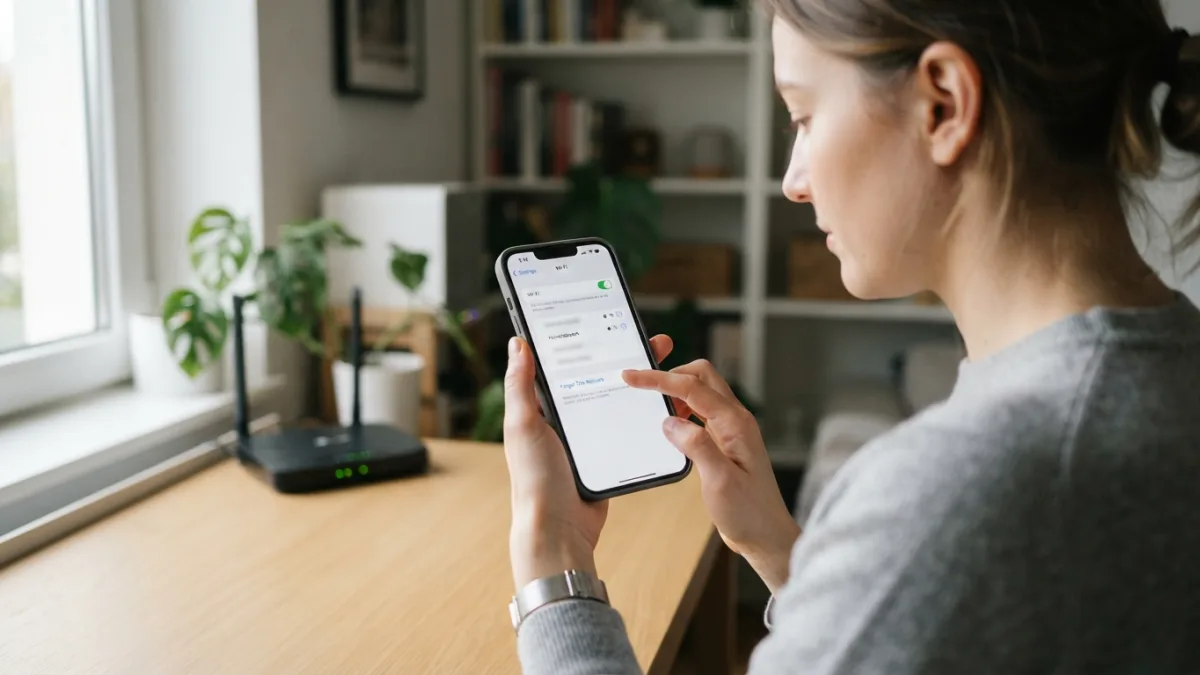
How to Fix Wi-Fi Problems on Your iPhone
Your iPhone suddenly refuses to load a webpage, your videos keep buffering, and the Wi-Fi icon at the top of your screen looks fine, yet nothing connects. If this sounds familiar, you’re not alone. Countless iPhone users run into this frustrating situation every day, often right when they need a stable connection the most. The good news is that most of the time, you can fix wifi problems on your own without calling a technician or rushing to the Apple Store. This guide walks you through practical, easy-to-follow steps that address the most common causes of wifi connection issues on iPhone, starting with the simplest fixes and moving toward more advanced solutions.
Why Does Wi-Fi Stop Working on an iPhone?
Before jumping into solutions, it helps to understand why this happens in the first place. Sometimes the problem sits with your router, not your phone. Other times, a software glitch, an outdated iOS version, or a corrupted network setting is the culprit. Physical distance from the router, interference from other devices, or even a recent iOS update can also trigger issues. When your iphone won’t connect to wifi despite showing full signal bars, it’s usually a software hiccup rather than a hardware failure. Knowing this distinction matters because it determines whether you should restart your router, tweak your phone’s settings, or dig deeper into iphone wifi troubleshooting steps that address the operating system itself. If you want to dig deeper, our guide on How to Fix an iPhone That Won't Turn On covers this in more detail. This is a common part of dealing with fix wifi problems, and it is worth keeping in mind.
Start With the Basics
Restart Your Router and iPhone
It sounds almost too simple, but restarting both your router and your iPhone solves a surprising number of connectivity problems. Unplug your router, wait about 30 seconds, then plug it back in and give it a minute or two to fully reboot. On your iPhone, turn it off completely and turn it back on rather than just closing apps. This clears temporary memory glitches and refreshes the connection between your device and the network. Many people skip this step because it feels outdated, but it remains one of the most effective ways to resolve wifi not working on iphone situations. Try connecting again once both devices have restarted, and check if the issue has cleared up. Many people run into this exact issue with fix wifi problems at some point.
Check Airplane Mode and Wi-Fi Toggle
Another quick check involves your iPhone’s settings themselves. Open Control Center and make sure Airplane Mode is switched off, since this disables all wireless connections including Wi-Fi. Next, toggle the Wi-Fi switch off and back on again from the Settings app rather than Control Center, as this sometimes forces a fresher reconnection attempt. While you’re there, confirm you’re connected to the correct network, especially if your home has multiple networks with similar names, such as one for 2.4GHz and another for 5GHz. Selecting the wrong one, or an old saved network that no longer exists, can cause your phone to appear connected while actually failing to load any data. Keeping fix wifi problems in mind here will save you time later on.
Forget the Network and Reconnect
If toggling Wi-Fi on and off doesn’t help, try forgetting the network entirely and setting it up again from scratch. Go to Settings, tap Wi-Fi, select the network name, and choose “Forget This Network.” This removes any saved passwords or corrupted configuration data tied to that specific connection. Afterward, search for the network again and enter the password fresh. This step often resolves stubborn wifi connection issues that persist even after restarting your devices, particularly when the problem started after a router password change or a firmware update on the network hardware. It only takes a minute, and it’s far less drastic than some of the deeper fixes discussed further down. This connects closely with another common issue — see How to Transfer Everything to a New iPhone Without Losing Data for more on that. This detail matters more than it seems once fix wifi problems comes up again.
Reset Network Settings on Your iPhone
When the basic steps don’t cut it, resetting network settings is usually the next logical move. This action wipes all saved Wi-Fi passwords, VPN configurations, and cellular settings, returning everything to factory defaults without deleting your photos, apps, or messages. To reset network settings iphone users can go to Settings, then General, then Transfer or Reset iPhone, and select Reset Network Settings. You’ll need to re-enter Wi-Fi passwords for all your saved networks afterward, so make sure you know them before proceeding. This method clears out any deep-seated configuration conflicts that simple toggling can’t touch, and it’s often the step that finally resolves persistent iphone wifi troubleshooting headaches that other fixes failed to address. It is one of those small things that makes fix wifi problems easier to manage overall.
Update iOS to the Latest Version
Outdated software is a common yet often overlooked source of connectivity trouble. Apple regularly releases updates that patch bugs affecting Wi-Fi performance, Bluetooth interference, and overall network stability. To check for updates, go to Settings, then General, then Software Update, and install anything available. Keeping your phone updated doesn’t just fix wifi problems that stem from known bugs; it also improves battery life and security in many cases. If you’ve been putting off an update because you’re worried about storage space or download time, connect to a stable network temporarily, perhaps a friend’s hotspot or a public network, just long enough to complete the download and installation process. This is a common part of dealing with fix wifi problems, and it is worth keeping in mind.
Check for Router and Network-Specific Issues
Sometimes the problem isn’t your iPhone at all, but the network itself. Try connecting a laptop or another phone to the same Wi-Fi network to see if the issue is isolated to your iPhone or affects every device in the house. If other devices also struggle, the router likely needs attention rather than your phone. Consider these router-related checks: You might also find our article on How to Stop Spam Calls and Texts on iPhone helpful here. Many people run into this exact issue with fix wifi problems at some point.
- Confirm the router’s firmware is up to date through its companion app or admin panel.
- Move closer to the router to rule out signal range problems.
- Check if too many devices are connected simultaneously, which can overload some routers.
- Restart your modem separately from your router if they’re different devices.
Addressing these factors often resolves issues that seemed like an iPhone problem but were actually rooted in the network hardware. Keeping fix wifi problems in mind here will save you time later on.
Reset All Settings as a Last Resort
If nothing so far has worked, resetting all settings on your iPhone goes a step further than the network reset. This wipes all system preferences, including display settings, keyboard preferences, and privacy permissions, back to their original state, though it still doesn’t delete your personal data like photos or apps. Navigate to Settings, then General, then Transfer or Reset iPhone, and choose Reset All Settings. This is a more thorough approach for those still asking why their iphone won’t connect to wifi after trying everything else. Because this step affects more than just network configurations, it’s worth trying only after the more targeted fixes mentioned earlier have been ruled out. This detail matters more than it seems once fix wifi problems comes up again.
When to Contact Apple Support or Your Carrier
If you’ve worked through every step above and your iPhone still won’t hold a stable Wi-Fi connection, the issue might involve a hardware fault, such as a damaged Wi-Fi antenna or chip, especially if the phone has been dropped or exposed to water. In this case, reaching out to Apple Support or visiting an Apple Store for a diagnostic check makes sense. It’s also worth contacting your internet service provider to rule out outages or account-related issues on their end. Bringing your phone in for a checkup isn’t a failure on your part; some problems genuinely require professional tools to diagnose accurately, particularly when a physical component rather than software is causing the disruption. For a related walkthrough, check out iPhone Battery Dying Too Fast? Try These Simple Fixes. It is one of those small things that makes fix wifi problems easier to manage overall.
Frequently Asked Questions
Why does my iPhone show Wi-Fi connected but no internet access?
This usually happens when your router loses its connection to the internet service provider while local network connections remain active. Restart your router and modem, and check if other devices face the same issue. This is a common part of dealing with fix wifi problems, and it is worth keeping in mind.
Will resetting network settings delete my photos or apps?
No, resetting network settings only removes saved Wi-Fi passwords, VPN profiles, and cellular configurations. Your photos, apps, messages, and other personal data stay untouched. Many people run into this exact issue with fix wifi problems at some point.
How often should I restart my router to avoid Wi-Fi problems?
There’s no strict rule, but restarting your router every few weeks, or whenever you notice slow speeds, can prevent minor glitches from building up over time. Keeping fix wifi problems in mind here will save you time later on.
Can an outdated iOS version cause Wi-Fi issues?
Yes, outdated software sometimes contains unresolved bugs affecting network performance. Installing the latest iOS update often resolves these hidden compatibility issues. This detail matters more than it seems once fix wifi problems comes up again.
What should I do if only my iPhone struggles to connect while other devices work fine?
Try forgetting the network and reconnecting, resetting network settings, or checking for a pending iOS update. If none of these help, a hardware issue with your iPhone’s Wi-Fi antenna might be the cause, and a visit to Apple Support is recommended. It is one of those small things that makes fix wifi problems easier to manage overall.



One Comment
Comments are closed.