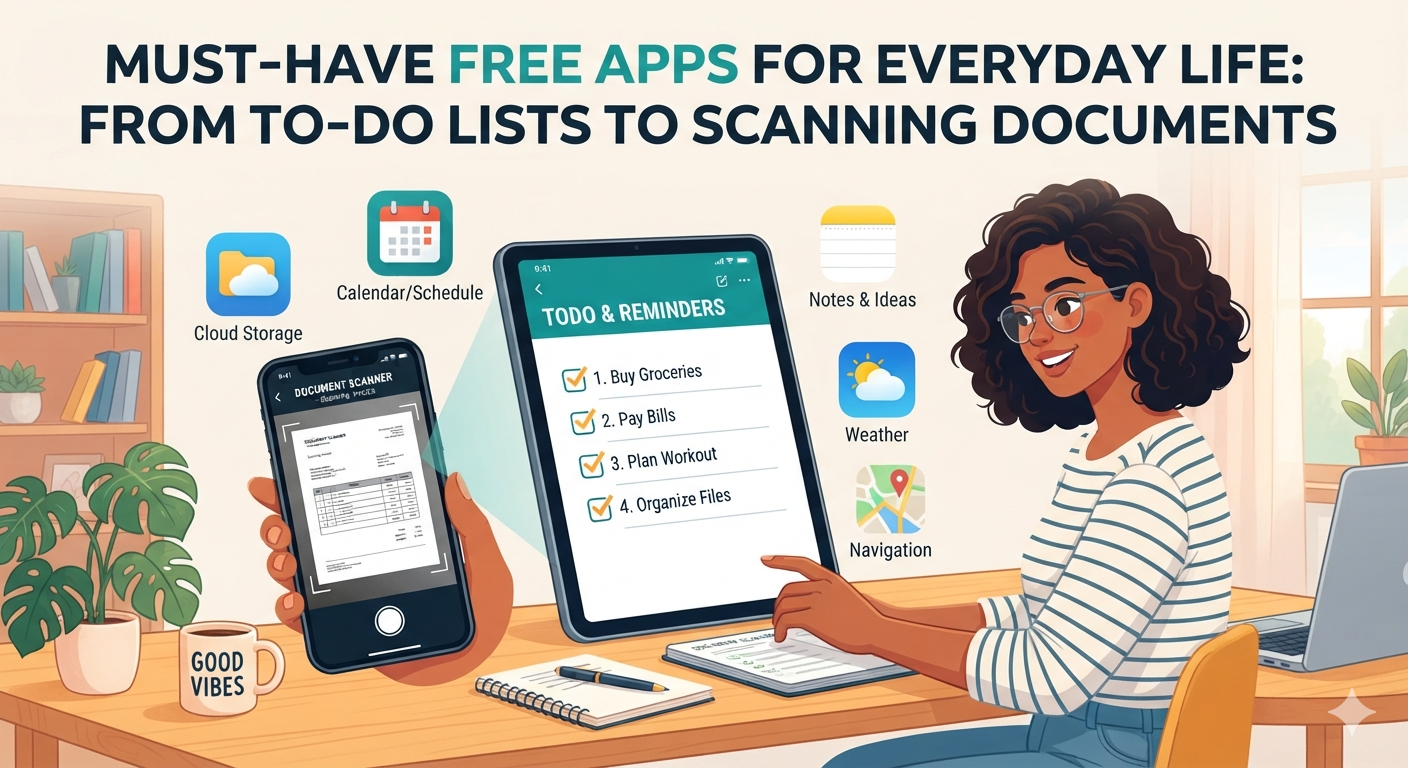
Your phone is probably holding more clutter than your junk drawer right now. Sticky notes, half-finished grocery lists, crumpled receipts you meant to file, and a document you needed to sign three days ago are all competing for your attention. The good news is that you don’t need to buy a single app to fix this chaos. Some of the most useful tools for daily life cost nothing and take just a few minutes to set up. Whether you’re a student juggling assignments, a parent managing a household, or someone simply trying to keep their inbox under control, there’s a free app out there built for that exact problem. This guide walks through the categories that matter most and names a few standout options in each, so you can stop searching app store reviews and start actually getting things done.
Why Free Apps Are Enough for Most People
There’s a common assumption that “free” means limited, and “paid” means better. That’s often not true anymore. Companies like Google, Microsoft, and countless independent developers offer robust free versions of their apps because they want you inside their ecosystem, using their cloud storage, or eventually upgrading for advanced features you may never even need. For the average person managing daily tasks, scanning a document, or jotting down a reminder, the free tier covers everything necessary. Premium versions usually add extras like unlimited cloud storage, team collaboration tools, or ad removal, none of which matter much if you’re just trying to remember to buy milk or keep a digital copy of your passport. So before you pull out your credit card for a productivity app, it’s worth testing the free version first. Chances are it does the job just fine.
To-Do List and Task Management Apps
A good to-do list app should feel effortless, not like another chore you have to manage. The best free options let you add tasks quickly, set reminders, and organize things into categories without forcing you through a maze of menus. Google Tasks is a solid starting point if you already use Gmail or Google Calendar, since it syncs automatically and appears right alongside your schedule. Microsoft To Do offers a similarly clean interface and works well for people already tied into Outlook or Windows. For those who want a bit more structure, Todoist’s free plan allows recurring tasks and basic project organization, which is handy for anything from work deadlines to home renovation checklists. The key is picking one app and sticking with it rather than splitting your tasks across three different platforms, which usually leads to forgetting something important anyway.
Features Worth Looking For
Not all task apps are built the same, so it helps to know what separates a genuinely useful one from a flashy but frustrating one. Look for apps that sync across your phone, tablet, and computer, since you’ll likely add tasks on the go and check them later at your desk. Reminder notifications are essential too, especially if you tend to forget things the moment you close the app. Some apps also let you attach notes or files to individual tasks, which is great for keeping context alongside the reminder itself. Voice input is another feature that saves time, letting you speak a task instead of typing it while you’re cooking or driving. Finally, check whether the app lets you organize tasks into separate lists for work, home, and personal errands, since one giant unsorted list tends to become overwhelming fast.
Note-Taking Apps That Actually Stick
Sticky notes on your desk are fine until you lose one or forget which one had the important phone number. Digital note-taking apps solve that problem by keeping everything searchable and backed up. Google Keep remains one of the simplest options, letting you jot quick notes, create checklists, and even set location-based reminders, all for free. Notion has grown into something closer to an all-in-one workspace, combining notes, databases, and task tracking, and its free plan is generous enough for personal use. Evernote, one of the original players in this space, still offers a usable free tier for basic note-taking and syncing across two devices. If you mainly want something fast and distraction-free, Google Keep wins on simplicity, while Notion suits people who like building more customized systems for their notes and projects.
Document Scanning Apps: Ditch the Scanner
Standalone scanners are quickly becoming relics, and honestly, most people don’t need one anymore. Your smartphone camera combined with the right app can produce a clean, readable PDF in seconds. Adobe Scan is one of the most popular free choices, using your camera to detect document edges automatically and clean up the image so it looks genuinely scanned rather than photographed at an angle. Microsoft Lens does something similar and integrates neatly with OneDrive and Office apps, which is convenient if you’re already in that ecosystem. Google’s own Drive app also includes a built-in scanning feature, so you don’t even need to download a separate tool if you use Android. These apps are especially useful for scanning receipts, contracts, ID cards, or handwritten notes you want to keep digitally instead of shoving into a drawer you’ll never open again.
Quick Comparison of Popular Free Scanning Apps
| App | Best For | Cloud Integration | OCR Text Recognition |
|---|---|---|---|
| Adobe Scan | General document scanning | Adobe Document Cloud | Yes |
| Microsoft Lens | Office and OneDrive users | OneDrive, Office apps | Yes |
| Google Drive Scan | Android users already using Google apps | Google Drive | Limited |
As the table shows, all three apps handle the basics well, but your existing habits should guide your choice. If you already store everything in OneDrive, Microsoft Lens will feel more natural. If Google Drive is your go-to storage, the built-in scanner saves you from installing anything new. Adobe Scan tends to edge out the competition when it comes to text recognition accuracy, which matters if you plan to search through scanned documents later for specific words or phrases. It’s also worth checking whether the app compresses files too aggressively, since some free scanning tools reduce image quality to save storage space, making small text harder to read afterward.
Password Managers and Digital Security
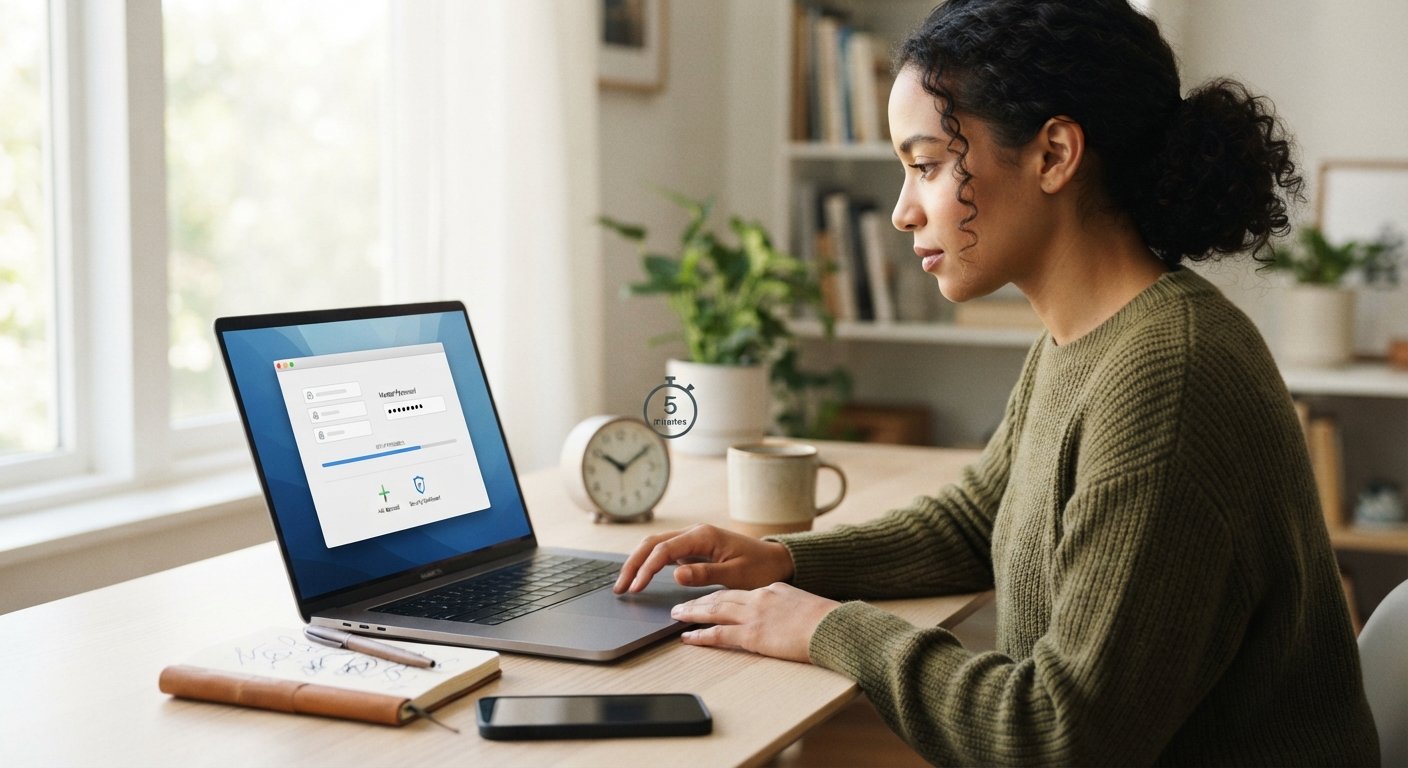
Keeping track of passwords is one of those tasks everyone knows they should do properly, yet most people still reuse the same three passwords across dozens of accounts. Free password managers like Bitwarden solve this by generating strong, unique passwords and storing them securely, so you only need to remember one master password. Google’s built-in password manager, available through Chrome and Android, also does a decent job for casual use, automatically saving and filling in login details across devices. These tools matter more than people realize, since weak or reused passwords are one of the most common ways accounts get compromised. Setting one up takes maybe fifteen minutes total, and after that, you barely think about passwords again because the app handles it quietly in the background every time you log into something.
Budgeting and Expense Tracking Apps
Managing money often feels intimidating, but free budgeting apps make it far less painful than opening a spreadsheet ever did. Mint, though it has changed ownership over the years, still offers free expense tracking by linking directly to your bank accounts and categorizing spending automatically. Apps like Goodbudget take a different approach, using the classic envelope budgeting method digitally, which works well for people who prefer manual control over automatic bank syncing. Even simple apps that just log daily expenses without bank integration can be surprisingly effective, since the act of writing down a purchase often makes people think twice before making unnecessary ones. Whichever app you choose, consistency matters more than features. Checking in weekly, rather than obsessively daily, tends to keep most people motivated without burning out on the habit.
Bringing It All Together
The real value of these apps isn’t in downloading all of them at once and hoping something sticks. It’s in picking one from each category, a to-do list, a note-taking app, a scanner, a password manager, and a budgeting tool, and actually using them consistently for a few weeks. Most people find that once these small systems are in place, daily life feels noticeably less chaotic. You stop searching for that one photo of a receipt buried somewhere in your camera roll. You stop forgetting appointments because a reminder already popped up an hour earlier. None of this requires spending money or becoming a productivity expert overnight. It just requires choosing tools that fit naturally into habits you already have, and giving them enough time to actually make a difference.
Frequently Asked Questions
Are free apps safe to use for storing personal documents?
Generally yes, as long as you download apps from official app stores and check their privacy policies. Reputable apps like Adobe Scan or Google Drive use encryption for stored files, though it’s always smart to avoid storing highly sensitive documents like passports in apps without strong security reputations.
Do I need to pay eventually for these apps to keep working well?
Most people never need to upgrade unless they require advanced features like team collaboration, unlimited storage, or business-level integrations. For personal daily use, the free versions of apps mentioned here typically remain fully functional indefinitely.
Which to-do list app is best for beginners?
Google Tasks or Microsoft To Do are the easiest starting points because of their simple interfaces and automatic syncing with email and calendar apps you likely already use.
Can scanning apps replace a physical printer or scanner completely?
For most everyday needs like scanning receipts, IDs, or signed forms, yes. Apps like Adobe Scan and Microsoft Lens produce clean, readable PDFs that work fine for emailing or digital filing, though heavy-duty document work may still benefit from a dedicated scanner.
Is it risky to use one password manager for every account?
It’s actually safer than reusing passwords across accounts. As long as your master password is strong and unique, a password manager significantly reduces your risk of being hacked compared to manually managing passwords yourself.