Your iPhone freezes mid-scroll, an app refuses to open, or the screen just goes black for no reason at all. Before you panic or rush to an Apple Store, there’s a good chance a simple restart or reset can fix the problem. Millions of iPhone users run into these glitches every year, and most of the time, the solution is far simpler than people expect. The tricky part is knowing which method to use, because “restart” and “reset” mean very different things, and picking the wrong one can lead to lost photos, messages, or app data. This guide walks you through every safe method to restart or reset your iPhone, from a quick reboot to a full factory reset, so you can fix your device without losing what matters most to you.
Why You Might Need to Restart or Reset Your iPhone
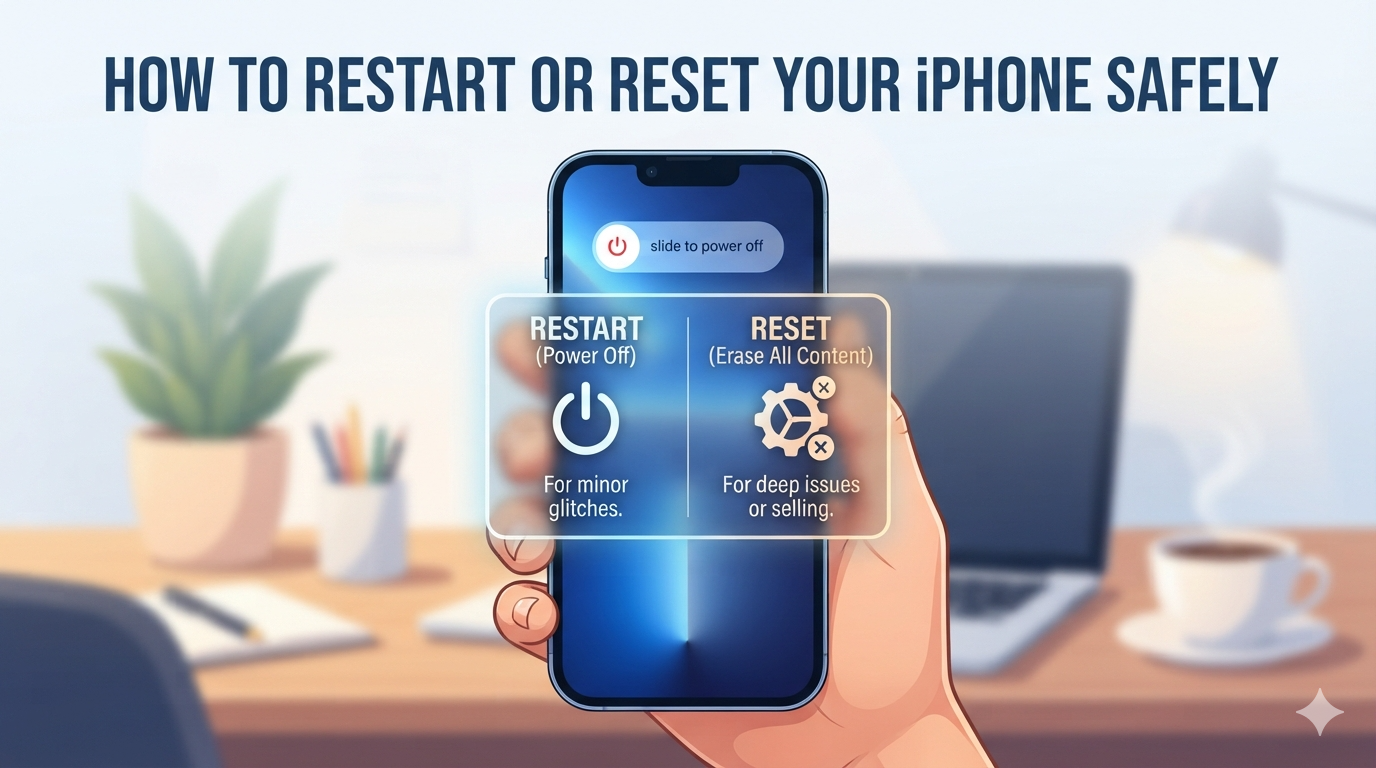
iPhones are generally reliable, but like any piece of technology, they occasionally act up. A restart is often the first troubleshooting step tech support will suggest, and for good reason. It clears out temporary files, closes apps running in the background, and gives the operating system a fresh start. Common signs you need a restart include a frozen screen, apps crashing repeatedly, a battery that drains unusually fast, or a phone that feels sluggish compared to how it normally performs. A reset, on the other hand, is a more serious step. You might need one if you’re selling your phone, if it’s been infected with a stubborn software issue, or if a restart simply hasn’t solved the problem. Knowing the difference between these two actions, and when each one is appropriate, can save you time and prevent unnecessary stress. In most cases, a simple restart resolves minor glitches, while a reset should be reserved for bigger issues.
Restarting Your iPhone: The Basics
A restart, sometimes called a reboot, simply turns your phone off and back on again. It doesn’t delete any of your data, photos, or settings, which makes it a completely safe first step whenever something feels off. Think of it as giving your iPhone a quick nap so it can wake up refreshed. This process shuts down all running apps and processes, then reloads the operating system from scratch, often resolving temporary software hiccups. The steps vary slightly depending on your iPhone model, since Apple has changed the button layout over the years. Newer models without a home button, like the iPhone X and later, use a different button combination than older models with a physical home button. Regardless of which type you own, the process takes less than a minute and requires no technical skill at all. If you’ve never restarted your phone before, don’t worry. It’s one of the safest and easiest actions you can take.
How to Restart iPhone Models With Face ID (iPhone X and Later)
If your iPhone doesn’t have a home button, follow these steps. Press and hold the side button along with either volume button at the same time. Keep holding until the “slide to power off” screen appears on your display. Once you see it, slide the power icon from left to right, and your phone will shut down completely. Wait about thirty seconds to let everything fully power down. Then, press and hold the side button again until you see the Apple logo appear on the screen. That’s it. Your phone will boot back up as normal, and all your apps, photos, and settings will remain exactly as you left them. This method works for iPhone X, XR, XS, all iPhone 11, 12, 13, 14, and 15 models, and should work the same way on future releases with similar designs. If your screen is completely unresponsive and this method doesn’t work, you may need to try a forced restart instead, which we’ll cover further down.
How to Restart iPhone Models With a Home Button
Older iPhone models, including the iPhone SE (first and second generation), iPhone 8, iPhone 7, and earlier versions, have a physical home button on the front. To restart one of these devices, press and hold the button located on the top or side of the phone, depending on the model. Continue holding until the “slide to power off” message appears. Slide it to turn the device off completely, then wait roughly thirty seconds before turning it back on. To power it back up, press and hold that same top or side button again until the Apple logo shows up on the screen. This process is nearly identical across all home-button iPhones, with only minor differences in button placement. It remains just as safe as the Face ID method, since no data gets touched during a standard restart. If your phone won’t respond to touch at all, you’ll want to try a forced restart, which uses a slightly different button sequence to force the shutdown.
Force Restarting a Frozen iPhone
Sometimes a phone becomes so unresponsive that the usual restart method doesn’t work. In these situations, a forced restart can help. This method is still safe and won’t erase any data, but it should only be used when your phone is genuinely frozen or unresponsive, since it’s a more abrupt shutdown than a standard restart. For iPhone 8 and later models without a home button, quickly press and release the volume up button, then quickly press and release the volume down button, and finally press and hold the side button until the Apple logo appears. For iPhone 7 and iPhone 7 Plus, hold down both the side button and the volume down button together until you see the Apple logo. For iPhone 6s and earlier models with a home button, hold both the home button and the top or side button simultaneously until the logo appears. This process typically takes ten to twenty seconds, and your phone will restart just like normal once it’s finished, with no impact on your saved data.
Understanding the Different Types of iPhone Resets
Once you move beyond a simple restart, it helps to understand that “reset” doesn’t mean just one thing on an iPhone. Apple actually offers several different reset options, each affecting a different part of your phone. Knowing which one to choose depends entirely on what problem you’re trying to solve. Here’s a quick breakdown of the main options available in your Settings app under General, then Transfer or Reset iPhone:
- Reset All Settings: Restores system settings like Wi-Fi passwords, wallpaper preferences, and privacy permissions to default, without deleting any personal data, apps, or photos.
- Reset Network Settings: Clears saved Wi-Fi networks, Bluetooth connections, and VPN configurations, which is useful for connectivity issues.
- Reset Keyboard Dictionary: Removes custom words you’ve added to your keyboard’s autocorrect suggestions.
- Reset Home Screen Layout: Returns app icons to their original default arrangement.
- Erase All Content and Settings: A full factory reset that wipes everything, returning your phone to its original out-of-box state.
Choosing the right option means you can solve a specific issue without unnecessarily wiping data you want to keep.
Comparing Reset Options
Since there are several reset levels available, it can help to see them side by side before deciding which one fits your situation. The table below breaks down what each option does, how much data it affects, and when you’d typically want to use it.
| Reset Type | What It Affects | Data Loss Risk | Best Used When |
|---|---|---|---|
| Restart | Temporary processes and memory | None | App freezes, minor glitches, sluggish performance |
| Reset All Settings | System preferences only | None | Wi-Fi problems, display bugs, settings acting oddly |
| Reset Network Settings | Wi-Fi, Bluetooth, VPN data | None (must re-enter passwords) | Connectivity or pairing issues |
| Erase All Content and Settings | Everything on the device | Full data loss without backup | Selling the phone or fixing severe software issues |
How to Safely Perform a Full Factory Reset
If you’ve tried restarting and lighter reset options without success, a full factory reset may be necessary. This is the most drastic option, since it erases everything on your device and returns it to the state it was in when it left the factory. Before doing this, back up your iPhone using iCloud or your computer, so you don’t lose photos, messages, contacts, or app data permanently. To back up through iCloud, go to Settings, tap your name at the top, select iCloud, then Manage Storage and Backups, and choose Back Up Now. Once your backup is complete, go to Settings, General, then Transfer or Reset iPhone, and select Erase All Content and Settings. You’ll be asked to enter your passcode and Apple ID password to confirm. The process can take several minutes, and your phone will restart automatically once finished, showing the initial setup screen as if it were brand new. From there, you can restore your data from the backup you just created, or set the phone up fresh if that’s your goal.
Frequently Asked Questions
Will restarting my iPhone delete my photos or messages?
No. A standard restart or forced restart never deletes any personal data. Your photos, messages, apps, and settings remain completely untouched during this process, since it only clears temporary memory and reloads the operating system.
What’s the difference between resetting settings and erasing all content?
Resetting settings only restores system preferences, like Wi-Fi passwords or display options, back to default without touching your personal files. Erasing all content wipes everything on the device, including photos, apps, and accounts, essentially returning it to a blank, out-of-box state.
How long should I wait before turning my iPhone back on after shutting it down?
Waiting about thirty seconds is generally recommended before powering your phone back on. This gives the internal components enough time to fully power down before starting up again, which can help resolve deeper software issues more effectively.
My iPhone screen is completely frozen and won’t respond to a normal restart. What should I do?
Try a forced restart instead. Depending on your model, this involves quickly pressing the volume up button, then the volume down button, and finally holding the side button until the Apple logo appears, or a similar combination for older models with a home button.
Do I need to back up my iPhone before every reset?
Only before a full factory reset, which is called Erase All Content and Settings. Lighter resets, like resetting network settings or general settings, don’t delete personal data, so a backup isn’t strictly necessary for those, though it’s never a bad habit to have one on hand.