

iPhone Battery Dying Too Fast? Try These Simple Fixes
You unplug your iPhone at 8 a.m. with a full charge, and by 3 p.m., you’re already hunting for an outlet. If this sounds familiar, you’re not alone. An iPhone battery dying too fast is one of the most common complaints among smartphone users, and it usually isn’t a sign that your phone is broken beyond repair. In most cases, a few background settings and habits are quietly draining your power without you realizing it. Before you consider a costly repair or a new device, there are several simple, free fixes worth trying first.
Why Your iPhone Battery Drains So Quickly
There are a handful of usual suspects behind sudden or gradual iphone battery drain. Software bugs after an iOS update, apps running in the background, screen brightness set too high, and location services running nonstop are the biggest culprits. Weather can play a role too, since extreme heat or cold temporarily reduces how efficiently a lithium-ion battery performs. Age matters as well. Every rechargeable battery loses some capacity over time, and after a couple of years of daily charging cycles, it’s normal to notice your phone doesn’t last as long as it did on day one. Understanding the root cause helps you figure out whether you need a quick settings adjustment or a genuine battery replacement. If you want to dig deeper, our guide on How to Choose Between iPhone and Android in 2026 covers this in more detail. This is a common part of dealing with battery dying too fast, and it is worth keeping in mind.
Check Your iPhone Battery Health First
Before trying any fixes, it helps to know where your battery actually stands. Apple includes a built-in tool that shows your iphone battery health as a percentage of its original capacity. Go to Settings, then Battery, then Battery Health & Charging. If you see a number below 80 percent, that’s a strong sign your battery has degraded significantly and no software tweak will fully solve the problem. Apple generally considers a battery to be in need of service once it drops below that threshold, since you’ll likely notice reduced performance and unexpected shutdowns. If your battery health is still in good shape, though, the drain you’re experiencing is probably software or usage related, and the fixes below should make a real difference. Many people run into this exact issue with battery dying too fast at some point.
Simple Fixes to Try First
Lower Your Screen Brightness and Use Auto-Lock
Your screen is one of the biggest power consumers on your phone. Turning down brightness manually, or letting Auto-Brightness adjust it based on your surroundings, can meaningfully extend iphone battery life over the course of a day. You’ll find this under Settings, then Display & Brightness. It also helps to shorten your Auto-Lock timer so the screen doesn’t stay lit longer than necessary every time you check a notification. Small habits like these add up, especially if you’re someone who picks up their phone dozens of times a day. Combined with Dark Mode, which can save additional power on iPhones with OLED screens, this is one of the easiest places to start. Keeping battery dying too fast in mind here will save you time later on.
Turn Off Background App Refresh
Many apps continue working even when you’re not actively using them, refreshing content and checking for updates in the background. This feature, called Background App Refresh, is convenient but can be a significant drain on battery life. Head to Settings, then General, then Background App Refresh, and either turn it off completely or disable it for apps you don’t use often. Social media apps and news apps tend to be the worst offenders here. You don’t need to eliminate it entirely if there are one or two apps you rely on for real-time updates, but trimming the list down can noticeably slow the drain. This connects closely with another common issue — see How to Free Up Storage Space on Your Android Phone Fast for more on that. This detail matters more than it seems once battery dying too fast comes up again.
Manage Location Services
GPS tracking is essential for apps like Maps, but plenty of apps request your location far more often than necessary. Go to Settings, then Privacy & Security, then Location Services, and review which apps have access. Switching an app’s permission to “While Using the App” instead of “Always” prevents it from tracking your location in the background all day long. You can also disable Location Services entirely for apps that don’t need it, such as certain games or utility tools. This single adjustment is often responsible for a surprising amount of iphone battery drain, particularly if you’ve granted broad permissions without thinking twice. It is one of those small things that makes battery dying too fast easier to manage overall.
Update to the Latest iOS Version
Software bugs are a common cause of sudden battery drain, and Apple regularly releases updates that address these issues. If your iPhone battery started dying too fast right after installing a new iOS version, you’re not imagining things. This has happened with several major updates over the years, and Apple typically follows up with a patch. Check Settings, then General, then Software Update, to make sure you’re running the latest version available. It’s also worth giving your phone a day or two after installing a fresh update, since the system needs time to reindex apps and settings in the background, which can temporarily increase power use. This is a common part of dealing with battery dying too fast, and it is worth keeping in mind.
Identify Battery-Hungry Apps
Your iPhone actually tells you which apps are consuming the most power, but many people never check. Open Settings, then Battery, and scroll down to see a breakdown of usage by app over the last 24 hours or 10 days. If one app stands out as using far more battery than expected relative to how often you use it, that’s worth investigating. Sometimes closing the app and reopening it, or reinstalling it altogether, resolves the issue. Other times, the fix is simply using the app less or switching to a lighter alternative. This screen is one of the most underused tools for iOS battery optimization. You might also find our article on How to Tell If a Website Is Legit Before You Enter Your Card Details helpful here. Many people run into this exact issue with battery dying too fast at some point.
Turn Off Unnecessary Notifications and Widgets
Every notification that lights up your screen and every widget that refreshes on your Home Screen uses a small amount of power. On their own, these seem insignificant, but across dozens of apps throughout the day, they add up. Go to Settings, then Notifications, and disable alerts for apps that don’t need to reach you instantly. Similarly, review your Home Screen widgets and remove ones you rarely glance at. This won’t single-handedly fix a battery that’s dying too fast, but it’s a helpful piece of a broader strategy to reduce unnecessary background activity. Keeping battery dying too fast in mind here will save you time later on.
Use Low Power Mode Strategically
Low Power Mode isn’t just for emergencies when you’re down to 10 percent. Turning it on earlier in the day reduces background activity, visual effects, and some automatic downloads, stretching your remaining charge further. You can enable it manually anytime through Settings, then Battery, or by adding it to your Control Center for quicker access. Some people choose to leave it on most of the time, since the performance trade-off is minor for everyday tasks like texting, browsing, and checking email. It’s one of the simplest iphone battery saving tips available, and it requires no ongoing effort once it’s turned on. This detail matters more than it seems once battery dying too fast comes up again.
When the Problem Is the Battery Itself
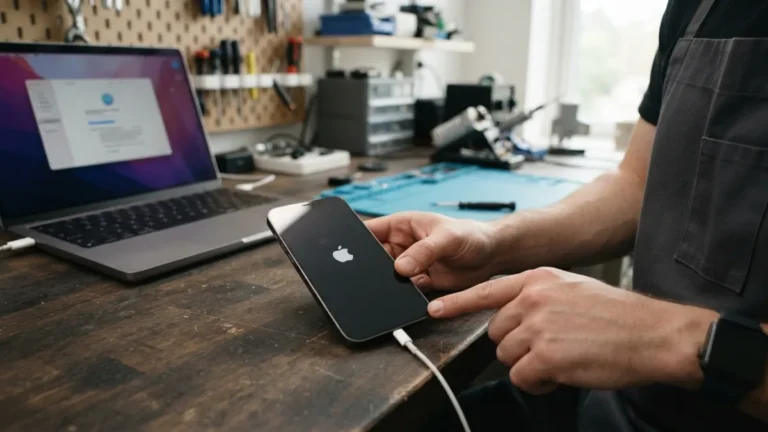
If you’ve worked through every setting above and your iPhone battery is still dying too fast, the issue likely comes down to the hardware. Batteries naturally wear out after hundreds of charge cycles, and no amount of software optimization can restore lost capacity. In this case, replacing the battery is the most effective long-term solution. Apple offers battery replacement services through its stores and authorized providers, and third-party repair shops offer similar services, often at a lower cost. Before booking a repair, check whether your device is still under warranty or covered by AppleCare, since a replacement might be free or heavily discounted depending on your battery health reading and coverage status. For a related walkthrough, check out How to Fix an Android Phone That Won't Turn On. It is one of those small things that makes battery dying too fast easier to manage overall.
Good Habits to Extend iPhone Battery Life Long-Term
Beyond one-time fixes, a few daily habits can help preserve your battery’s health for years to come. Avoid letting your phone sit at 0 percent or 100 percent for extended periods, since both extremes put stress on the battery. Try to keep your charge roughly between 20 and 80 percent when possible, especially if you’re charging overnight. Avoid exposing your phone to extreme heat, such as leaving it in a hot car, since heat accelerates battery degradation faster than almost anything else. Using an original or certified charger also matters, since cheap, uncertified cables and adapters can deliver inconsistent power. These small adjustments won’t produce instant results, but they pay off significantly over the life of your device. This is a common part of dealing with battery dying too fast, and it is worth keeping in mind.
Frequently Asked Questions
Why is my iPhone battery dying too fast all of a sudden?
A sudden drop in battery life is usually linked to a recent iOS update, a misbehaving app running in the background, or a spike in screen-on time. Check your Battery usage screen in Settings to identify which app is using the most power, and make sure your software is up to date. Many people run into this exact issue with battery dying too fast at some point.
What is a normal iPhone battery health percentage?
Apple designs iPhone batteries to retain up to 80 percent of their original capacity after around 500 complete charge cycles. Anything above 80 percent is generally considered healthy, while readings below that suggest a replacement will noticeably improve performance. Keeping battery dying too fast in mind here will save you time later on.
Does closing background apps actually save battery?
Not usually. iOS is designed to manage apps efficiently in the background, and force-closing them can actually use more power when you reopen them from scratch. It’s more effective to disable Background App Refresh for specific apps than to constantly swipe apps closed. This detail matters more than it seems once battery dying too fast comes up again.
Should I turn my iPhone off overnight to save battery?
Turning your phone off occasionally won’t hurt, but it’s not necessary for battery health. Enabling Low Power Mode or simply leaving your phone on Do Not Disturb overnight achieves a similar power-saving effect without missing important calls or alarms. It is one of those small things that makes battery dying too fast easier to manage overall.
How often should I replace my iPhone battery?
There’s no fixed timeline, since it depends on usage habits and charging patterns, but many people notice the need for a replacement after two to three years of regular use. Checking your Battery Health percentage periodically is the best way to know when it’s time. This is a common part of dealing with battery dying too fast, and it is worth keeping in mind.



2 Comments
Comments are closed.