

How to Free Up Storage Space on Your Android Phone Fast
That dreaded “Storage Almost Full” notification always pops up at the worst possible moment, usually right when you’re trying to snap a photo or download an app you actually need. If you’re tired of deleting photos one by one just to make room, you’re not alone. Learning how to free up storage space on your Android phone doesn’t have to involve hours of manual cleanup or buying a new device. With a few smart tricks and some built-in tools you probably didn’t know existed, you can reclaim gigabytes of space in under 30 minutes. This guide walks through the fastest, most effective ways to clear out clutter, speed up your phone, and stop those annoying storage warnings for good.
Check What’s Actually Eating Up Your Storage
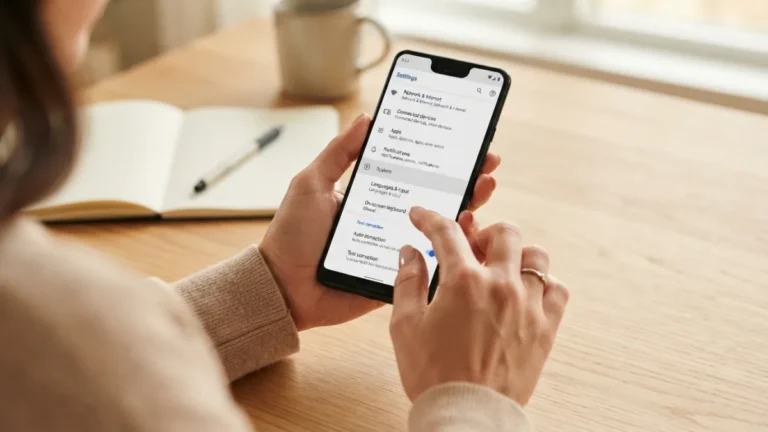
Before you start deleting things randomly, it helps to know exactly what’s taking up space. Head into your phone’s Settings app, then tap Storage (on many devices this is under “Battery and device care” or “General management”). You’ll see a breakdown showing how much space is used by photos, apps, videos, audio, and system files. This is often the first surprise for most users, since apps and cached data usually take up far more room than expected. Some phones even let you tap into each category for a detailed view. Spending five minutes here saves you from wasting time on the wrong fixes. Once you know where the bulk of your storage is going, you can focus your cleanup efforts exactly where they’ll make the biggest difference. If you want to dig deeper, our guide on How to Stop Spam Calls and Texts on Android covers this in more detail. This is a common part of dealing with free up storage space, and it is worth keeping in mind.
Clear Cache Android Apps Leave Behind
Every app you use, from social media to games, quietly stores temporary files called cache to help it load faster next time. Over weeks and months, this cache builds up and can consume several gigabytes without you noticing. To clear cache android-wide, go to Settings, tap Apps, select an app, then choose Storage, and hit “Clear Cache.” Doing this for a handful of your most-used apps, especially browsers, social media platforms, and streaming services, can free up a surprising amount of space almost instantly. The good news is that clearing cache is completely safe. It doesn’t delete your account data, photos, or saved settings, it just removes temporary files that the app will simply rebuild the next time you open it. Many people run into this exact issue with free up storage space at some point.
Use Your Phone’s Built-In Storage Manager
Most Android phones come with a built-in android storage manager that scans your device and suggests exactly what to remove. On Samsung phones, this tool lives inside “Battery and device care,” while Google Pixel devices have a similar feature simply called Storage inside Settings. These tools flag duplicate files, old downloads, unused apps, and large videos automatically, saving you the trouble of hunting through folders manually. Many of them also offer a one-tap “Clean now” or “Free up space” button that clears junk files in seconds. If you’ve never used this feature before, it’s worth checking regularly, maybe once a month, since it keeps working in the background and catches clutter you’d otherwise overlook completely. Keeping free up storage space in mind here will save you time later on.
Delete Unused Apps Taking Up Space
Take a scroll through your app drawer and be honest with yourself. That fitness app you downloaded in January and never opened again? The game you finished three months ago? These are prime candidates to delete unused apps that serve no purpose except taking up storage. Go to Settings, tap Apps, and sort by size to see which ones are the biggest space hogs. Many apps also silently accumulate data over time, so even a small app can balloon to hundreds of megabytes after months of use. Uninstalling anything you haven’t touched in the last two or three months is a safe rule of thumb. You can always reinstall an app later if you find you actually need it again. This detail matters more than it seems once free up storage space comes up again.
Manage Photos and Videos Wisely
For most people, photos and videos are the single biggest storage drain on their phone. A few years of daily photo-taking, plus screenshots and videos, can easily add up to tens of gigabytes. Start by backing up your photos to Google Photos, which offers cloud storage so you can then remove the original files from your device without losing them. Look for the “Free up space” option inside the Google Photos app itself, it automatically deletes photos that are already safely backed up. It’s also worth deleting duplicate images, blurry shots, and old screenshots you no longer need. Videos take up even more room than photos, so consider transferring important ones to a computer or cloud storage before removing them from your phone entirely. It is one of those small things that makes free up storage space easier to manage overall.
Move Files to the Cloud or an SD Card
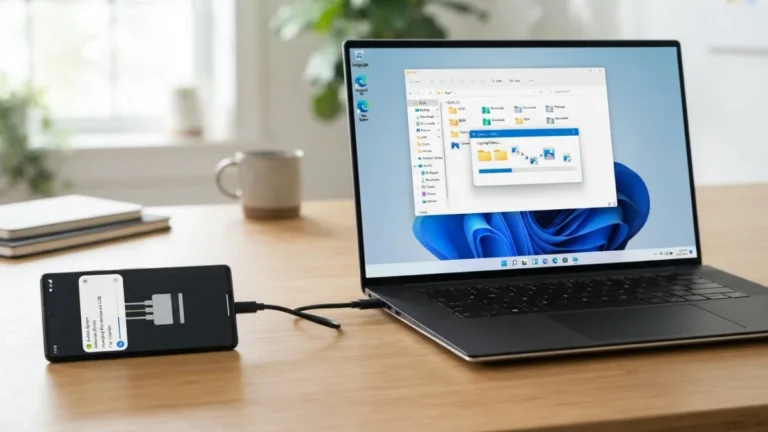
If your phone supports expandable storage, adding a microSD card is one of the easiest ways to instantly increase your available space without deleting anything at all. Many Android phones let you move apps, photos, and videos directly to the card through the Storage settings menu. If your phone doesn’t support SD cards, cloud storage services like Google Drive, Dropbox, or OneDrive offer a solid alternative. These services usually provide a few gigabytes of free storage, which is often enough for documents and important files you rarely access but don’t want to lose. Once uploaded, you can safely remove the local copies from your phone, freeing up space immediately while keeping your files accessible from any device with an internet connection. This connects closely with another common issue — see How to Stop Annoying Ads and Pop-Ups on Android for more on that. This is a common part of dealing with free up storage space, and it is worth keeping in mind.
Clear Out Downloads and Old Files
The Downloads folder is one of the most overlooked storage hogs on any Android phone. PDFs, old APK files, memes someone sent you months ago, and documents you forgot about all pile up quietly in the background. Open your Files app (often called “Files by Google” or simply “My Files”), tap Downloads, and sort by size or date to spot the biggest offenders. Google’s Files app even has a “Clean” tab that scans for junk files, duplicate content, and old downloads, then lets you delete them all with a single tap. This process usually takes less than five minutes but can reclaim several hundred megabytes to a couple of gigabytes, depending on how long it’s been since you last checked. Many people run into this exact issue with free up storage space at some point.
Offload WhatsApp and Messaging Media
If you’re an active WhatsApp, Telegram, or Messenger user, there’s a good chance media files are quietly draining your storage without you realizing it. Every photo, video, voice note, and GIF sent in group chats gets automatically saved to your phone by default. Inside WhatsApp, go to Settings, then Storage and Data, then Manage Storage to see which chats are using the most space. From there, you can filter by file size and delete large videos or forwarded media you don’t need to keep. It also helps to turn off automatic media download for videos going forward, so your phone stops filling up with content you never asked to save in the first place. Keeping free up storage space in mind here will save you time later on.
Quick Comparison: Best Ways to Free Up Storage Space
Not every method works the same for everyone, so here’s a quick side-by-side look at the most common options, how fast they work, and how much space you can typically expect to recover. This detail matters more than it seems once free up storage space comes up again.
| Method | Speed | Typical Space Recovered |
|---|---|---|
| Clear app cache | Instant | 500 MB – 3 GB |
| Delete unused apps | 5–10 minutes | 1 GB – 5 GB |
| Back up and remove photos/videos | 15–20 minutes | 5 GB – 20 GB |
| Clean downloads folder | 5 minutes | 500 MB – 2 GB |
| Add SD card or cloud storage | Instant increase | Varies (up to storage capacity added) |
Restart Your Phone After Cleanup
Once you’ve gone through the steps above, take a moment to restart your phone. This might sound like an unnecessary extra step, but it actually helps clear temporary system files and refresh background processes that build up over time. A restart also allows your phone to properly register the space you’ve just freed up, which sometimes doesn’t reflect accurately in Settings until after a reboot. This is especially true after clearing large amounts of cache or uninstalling several apps at once. It only takes a minute, but it’s a simple way to make sure your android storage cleanup actually takes full effect and that your phone runs noticeably smoother afterward. It is one of those small things that makes free up storage space easier to manage overall.
Make It a Habit, Not a One-Time Fix
The truth is, storage clutter builds up again no matter how thorough your cleanup was this time. The best approach is to treat this as ongoing phone memory management rather than a one-off emergency task. Set a reminder to check your storage settings once a month, clear cache from your most-used apps regularly, and back up photos as you take them instead of waiting until your phone is nearly full. Many android storage manager tools also let you schedule automatic cleanups, which takes the guesswork out of the process entirely. By building these small habits into your routine, you’ll rarely see that frustrating storage warning again, and your phone will consistently run faster and more reliably as a result. You might also find our article on How to Back Up Everything Important in Under 30 Minutes helpful here. This is a common part of dealing with free up storage space, and it is worth keeping in mind.
Frequently Asked Questions
How can I free up storage space on my Android phone without deleting photos?
Clear app cache, delete unused apps, move files to an SD card or cloud storage, and clean out your Downloads folder. These methods often recover several gigabytes without touching a single photo. Many people run into this exact issue with free up storage space at some point.
Does clearing cache delete my photos or app data?
No. Clearing cache only removes temporary files that apps use to load faster. Your photos, login details, and saved settings remain completely untouched. Keeping free up storage space in mind here will save you time later on.
What’s the fastest way to free up phone memory in an emergency?
Use your phone’s built-in storage manager and tap the automatic cleanup or “Free up space” suggestion. It scans for junk files and unused apps in seconds and often recovers gigabytes with one tap. This detail matters more than it seems once free up storage space comes up again.
How often should I clean my Android storage?
Checking once a month is a good habit. Regular small cleanups prevent the buildup that leads to sudden “storage full” warnings. It is one of those small things that makes free up storage space easier to manage overall.
Is it safe to delete apps I haven’t used in months?
Yes. Uninstalling an app doesn’t delete your account or data stored on that service’s servers in most cases, and you can always reinstall it later if needed. This is a common part of dealing with free up storage space, and it is worth keeping in mind.



9 Comments
Comments are closed.