
How to Transfer Files Between Android and PC (No App Needed)
That USB cable tangled in your desk drawer might be the fastest way to move photos off your phone, but plenty of people don’t realize they don’t need any special software to make it work. If you want to transfer files between Android and PC without downloading a single app, you’re in luck: Android and Windows already have built-in tools that handle the job just fine. Whether you’re backing up vacation photos, moving a work document, or clearing space before a software update, there are several no-frills methods that get files moving in minutes. This guide walks through the most reliable options, starting with the classic cable connection and moving into wireless alternatives that work just as well.
Why Skip Third-Party Apps?
Third-party file transfer apps aren’t bad, but they come with baggage. Many require accounts, ask for permissions you might not want to grant, or bundle extra features you’ll never use. Some even slow down over time as they push updates and notifications. Using built-in tools instead means fewer security risks, no cluttered storage on your phone, and no waiting for downloads before you can even start moving files. It also means the process works almost anywhere, since you’re relying on software that’s already part of your operating system. For anyone who just wants a quick, no-nonsense way to move a folder of pictures or a batch of PDFs, skipping the app store entirely is often the simplest route. If you want to dig deeper, our guide on How to Free Up Storage Space on Your Android Phone Fast covers this in more detail. This is a common part of dealing with transfer files between android, and it is worth keeping in mind.
Method 1: USB File Transfer Android to PC
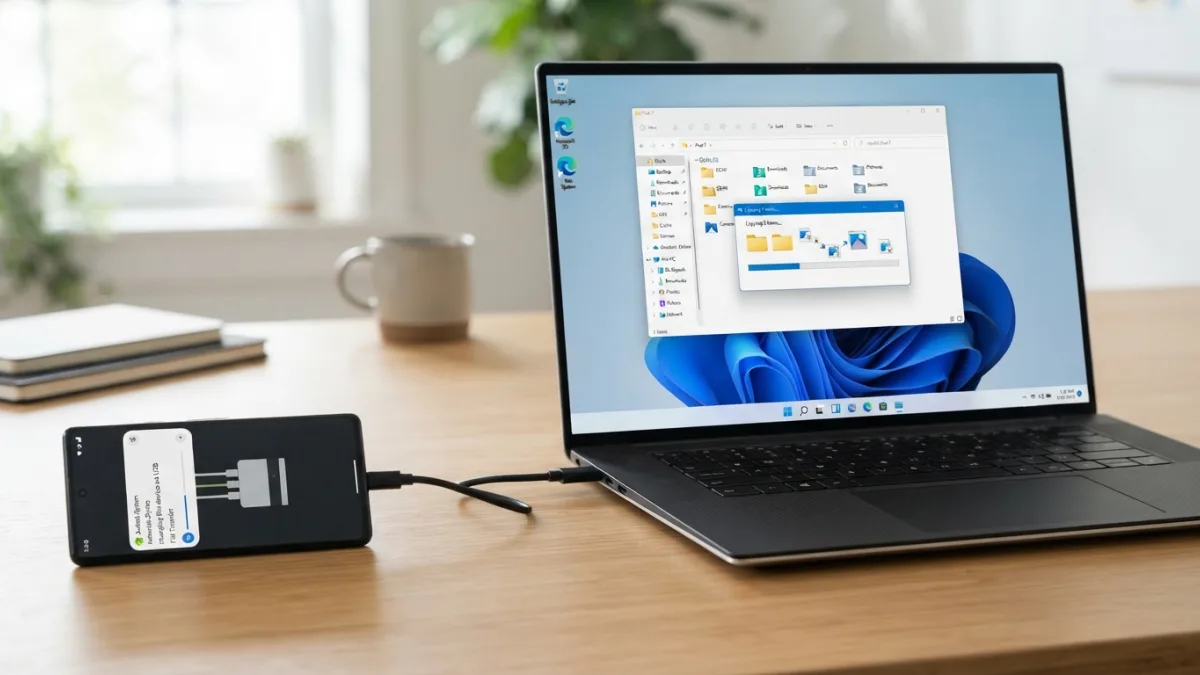
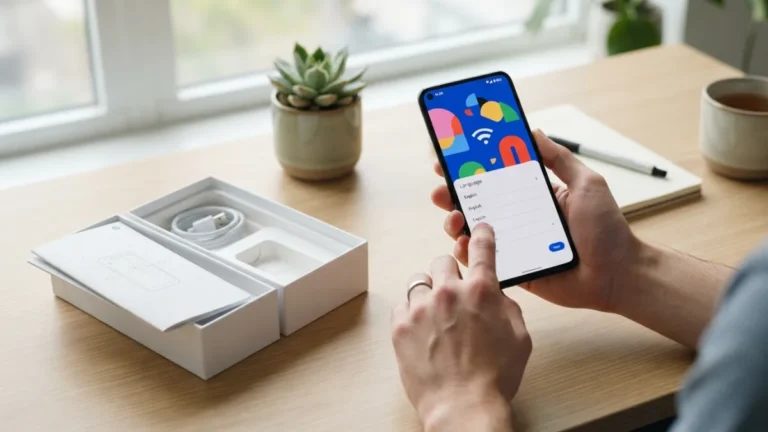
The most dependable way to move files remains a simple USB cable. This method works offline, doesn’t depend on Wi-Fi speed, and handles large files like videos without any hiccups. It’s the go-to choice for anyone who prioritizes speed and reliability over convenience. Here’s how to set it up on a Windows computer: Many people run into this exact issue with transfer files between android at some point.
- Connect your Android phone to your PC using a USB cable.
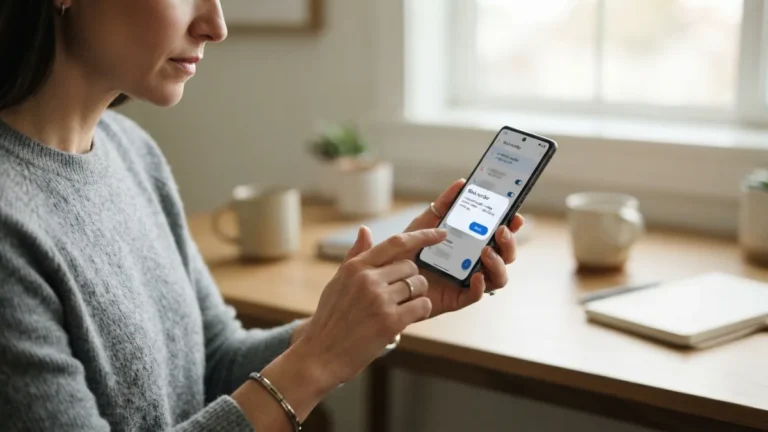
- Swipe down on your phone to view the notification panel and tap the USB notification (it may say “Charging this device” by default).
- Select “File Transfer” or “Transfer files” from the options that appear.
- On your PC, open File Explorer and look for your phone’s name under “This PC” or “Devices and drives.”
- Open the folder, navigate to the files you need, and drag them to a folder on your computer.
This process works in reverse too, letting you drag files from your PC straight onto your phone’s storage. Keeping transfer files between android in mind here will save you time later on.
Troubleshooting Common USB Connection Issues
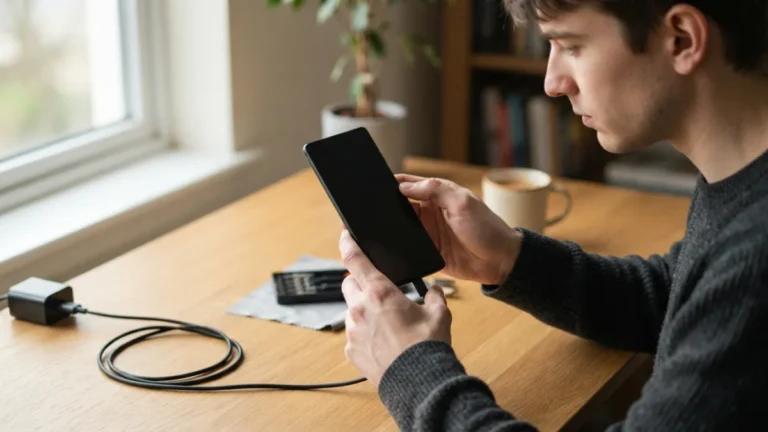
Sometimes the phone doesn’t show up in File Explorer even after you’ve selected file transfer mode. If that happens, try a different USB cable, since some cables only support charging and not data transfer. Switching to a USB port directly on the motherboard rather than a front-panel port can also help. If your PC still doesn’t recognize the device, check that your phone’s screen is unlocked, since some Android versions block file access while locked. Restarting both devices often resolves temporary glitches too. On rare occasions, you may need to update your phone’s USB drivers through Windows Update, though most modern computers handle this automatically the moment you plug in an Android device. This connects closely with another common issue — see How to Stop Spam Calls and Texts on Android for more on that. This detail matters more than it seems once transfer files between android comes up again.
Method 2: Wireless File Transfer Android PC Using a Web Browser
If you’d rather skip cables altogether, your phone’s browser can act as a bridge. Google Photos, for instance, lets you upload images from your phone and then download them from photos.google.com on your computer, all without installing anything extra. Similarly, if you use Gmail or another webmail service, you can email files to yourself as attachments and open them on your PC. This approach works best for smaller batches of files, since email attachments usually have size limits and photo uploads can take a while depending on your internet speed. It’s not the fastest option, but it’s incredibly convenient when you don’t have a cable handy and both devices are connected to the internet. It is one of those small things that makes transfer files between android easier to manage overall.
Method 3: Using Nearby Share and Windows’ Built-In Tools
Google’s Nearby Share feature, now integrated more deeply with Windows through Microsoft’s Phone Link app, allows file sharing over Bluetooth or Wi-Fi Direct without needing cloud storage. While Phone Link itself is a Microsoft tool rather than a third-party download, it comes pre-installed on many Windows 10 and 11 machines, which means you’re not adding anything new to your system. Once linked, you can send photos, screenshots, and documents between your Android phone and PC with just a few clicks. This method is especially handy for people who frequently move files back and forth and want a semi-permanent wireless connection rather than repeating a manual process every time. This is a common part of dealing with transfer files between android, and it is worth keeping in mind.
Method 4: SMB and Network Sharing for Android to PC File Transfer
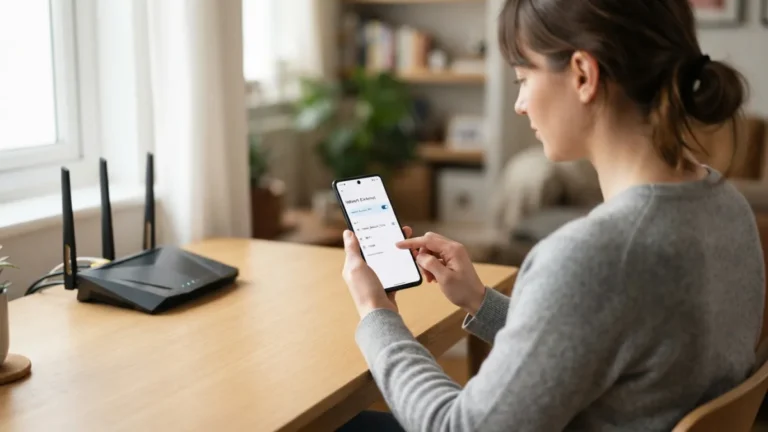
For those comfortable with a bit more setup, Android’s built-in file manager apps often support SMB (Server Message Block) network sharing, which lets your phone connect directly to a shared folder on your PC over Wi-Fi. This requires enabling network sharing on your Windows computer first, then adding the network address in your phone’s file manager. It sounds technical, but once configured, it works seamlessly and doesn’t require internet access, just a shared local network. This option suits anyone who transfers files regularly and wants a more permanent connection instead of repeating cable or browser steps every single time. It’s also faster than most wireless alternatives since it doesn’t rely on external servers. You might also find our article on How to Stop Annoying Ads and Pop-Ups on Android helpful here. Many people run into this exact issue with transfer files between android at some point.
Comparing Your Options
Each method has its strengths depending on what you value most: speed, convenience, or no setup at all. Here’s a quick comparison to help you decide which works best for your situation. Keeping transfer files between android in mind here will save you time later on.
| Method | Speed | Requires Internet | Best For |
|---|---|---|---|
| USB Cable | Fast | No | Large files, offline transfers |
| Browser Upload/Email | Slow to Moderate | Yes | Small files, occasional use |
| Nearby Share / Phone Link | Moderate to Fast | Sometimes | Frequent small transfers |
| SMB Network Sharing | Fast | No (local network only) | Regular transfers, tech-savvy users |
Tips for a Smoother Transfer Experience
A few small habits can make any of these methods run more smoothly. Keep your Android software updated, since older versions sometimes have bugs affecting USB connectivity. Before transferring large batches of photos or videos, double-check your PC has enough free storage to avoid interrupted transfers. If you’re using Wi-Fi-based methods, staying close to your router improves speed and reliability. It also helps to organize files into folders on your phone before starting, so you’re not hunting through hundreds of thumbnails once the transfer window is open. These small steps save time and prevent the frustration of a failed or incomplete transfer, especially when working with large media files. This detail matters more than it seems once transfer files between android comes up again.
When You Might Still Want an App
Built-in methods cover most everyday needs, but there are situations where dedicated android file transfer software still makes sense. If you regularly move huge amounts of data, need automatic syncing, or want to manage files between multiple devices at once, an app might save you time in the long run. Some apps also offer advanced features like selective folder syncing or scheduled backups that manual methods can’t easily replicate. That said, for the average person who just wants to grab a few files from their phone or send documents to their computer, the cable, browser, and Nearby Share options described above are more than sufficient and far less complicated to set up. For a related walkthrough, check out How to Back Up Everything Important in Under 30 Minutes. It is one of those small things that makes transfer files between android easier to manage overall.
Frequently Asked Questions
Can I transfer files between Android and PC without a USB cable?
Yes. You can use wireless options like Nearby Share, Phone Link, or browser-based uploads through services like Google Photos or Gmail. These methods don’t require a cable but may depend on Wi-Fi or internet access. This is a common part of dealing with transfer files between android, and it is worth keeping in mind.
Why won’t my Android phone show up on my PC after connecting?
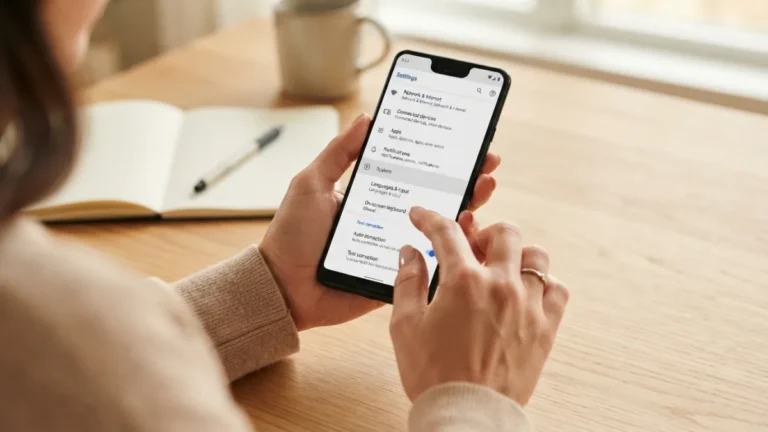
This usually happens because the phone isn’t set to file transfer mode, or the cable only supports charging. Try switching the USB mode from your phone’s notification panel and testing a different cable or USB port. Many people run into this exact issue with transfer files between android at some point.
Is USB file transfer android faster than wireless methods?
Generally, yes. A direct USB connection avoids the bottlenecks of Wi-Fi speed and internet bandwidth, making it the better choice for large files like videos or big photo batches. Keeping transfer files between android in mind here will save you time later on.
Do I need an internet connection for SMB network sharing?
No. SMB sharing works over your local Wi-Fi network, so you don’t need an active internet connection, just both devices connected to the same network. This detail matters more than it seems once transfer files between android comes up again.
Which method is best for transferring files without an app?
It depends on your priorities. USB cables offer speed and reliability, while Nearby Share and browser uploads offer convenience without any wires. For regular transfers, setting up SMB sharing once can save time long term. It is one of those small things that makes transfer files between android easier to manage overall.
2 Comments
Comments are closed.