
How to Stop Annoying Ads and Pop-Ups on Android
You’re scrolling through a news article or checking the weather when suddenly your phone buzzes with a notification claiming you’ve won a free iPhone. Or a full-screen ad hijacks your browser the moment you tap a link. If this sounds familiar, you’re not alone, and you’re probably searching for ways to stop annoying ads that seem to follow you everywhere on your Android device. The good news is that these intrusive pop-ups and ads are almost always fixable, and you don’t need to be a tech expert to clean up your phone.
Before diving into solutions, it helps to understand why this happens in the first place. Most pop-up ads on Android come from a handful of sources: shady apps you’ve installed, browser settings that allow notifications from sketchy websites, or malware that snuck in disguised as something harmless. Sometimes it’s even a legitimate app using aggressive ad networks to make money. Once you know where the ads are coming from, fixing the problem becomes a lot less mysterious and a lot more manageable. If you want to dig deeper, our guide on How to Transfer Everything to a New Android Phone covers this in more detail. This is a common part of dealing with stop annoying ads, and it is worth keeping in mind.
Check Your Browser Notification Settings First
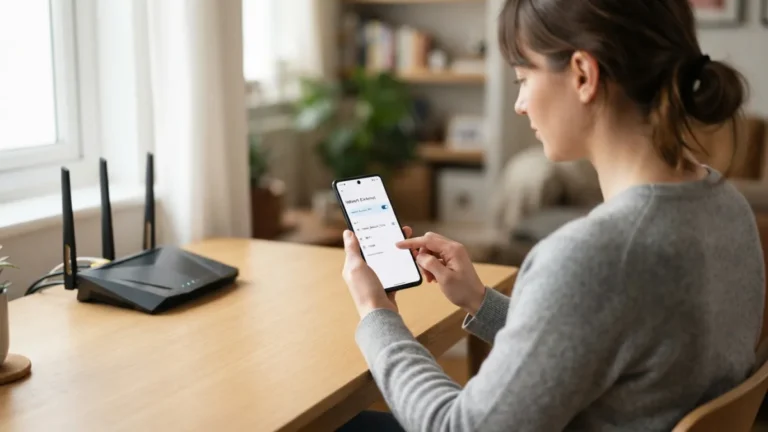
One of the most common culprits behind pop-up ads on Android is browser notification permissions you may have accidentally granted. Many sketchy websites ask “Allow notifications?” right when you land on the page, and if you tap “Allow” without thinking, that site can now send you ads disguised as system alerts at any time. This is often the single biggest source of random ad pop-ups on phones, and it’s also the easiest to fix. Many people run into this exact issue with stop annoying ads at some point.
To clean this up in Chrome, open the app, tap the three dots in the top right corner, and go to Settings, then Notifications, then Site Settings. From there, you’ll see a list of every website that has permission to send you notifications. Scroll through and revoke access for anything unfamiliar or suspicious. If you don’t recognize a site, it almost certainly doesn’t need to be sending you notifications, so don’t hesitate to remove it. Keeping stop annoying ads in mind here will save you time later on.
How to Disable Ad Notifications From Installed Apps
Sometimes the ads aren’t coming from your browser at all, but from an app that’s quietly sending promotional push notifications. This is especially common with free apps, games, and utility tools that rely on ad revenue. To disable ad notifications from a specific app, go to Settings, then Apps, select the app in question, and tap Notifications. From there, you can turn off notifications entirely or selectively disable categories like marketing and promotions, depending on what your Android version allows. This detail matters more than it seems once stop annoying ads comes up again.
If you’re not sure which app is the culprit, pay attention to the next few pop-ups you receive. Android usually shows which app triggered the notification right in the alert itself. Once identified, you can decide whether to mute its notifications, adjust its permissions, or remove it completely if it’s more trouble than it’s worth. This step alone often resolves a surprising number of complaints people have about random ads appearing on their lock screen. It is one of those small things that makes stop annoying ads easier to manage overall.
Uninstall Suspicious or Unnecessary Apps
Not every app deserves a permanent spot on your phone, especially if it came bundled with extra software you didn’t ask for. Some free apps, particularly those offering “cleaner,” “booster,” or “flashlight” functions, are notorious for pushing full-screen ads even when you’re not using them. If you’ve noticed pop-ups increasing after installing a specific app, that’s your first suspect. This connects closely with another common issue — see How to Transfer Files Between Android and PC (No App Needed) for more on that. This is a common part of dealing with stop annoying ads, and it is worth keeping in mind.
Go through your app list and ask yourself honestly which ones you actually use. To remove an app, press and hold its icon, then tap Uninstall, or go through Settings > Apps and select uninstall from there. Pay particular attention to apps downloaded from outside the Google Play Store, since these are more likely to carry hidden adware. When in doubt, it’s safer to remove an app and reinstall it later than to leave a potential source of ads running in the background. Many people run into this exact issue with stop annoying ads at some point.
Use a Trusted Android Ad Blocker
If browser and app settings alone don’t solve the problem, installing a dedicated android ad blocker can make a real difference, particularly for ads that appear while browsing. Ad blockers work by filtering out known ad domains before they ever load on your screen, which not only removes pop-ups but often speeds up page loading too. Some popular and well-reviewed options include: Keeping stop annoying ads in mind here will save you time later on.
- Blokada – a free, open-source option that blocks ads system-wide without requiring root access
- AdGuard – offers both a free version and a paid version with more advanced filtering
- Brave Browser – a full browser replacement with built-in ad and tracker blocking
Each of these tools takes a slightly different approach, so it’s worth trying one and seeing how it fits your habits before committing. Brave, for instance, replaces your current browser entirely, while Blokada and AdGuard work more like background filters that apply across multiple apps. This detail matters more than it seems once stop annoying ads comes up again.
Comparing Popular Ad Blocking Options
| App | Type | Cost | Best For |
|---|---|---|---|
| Blokada | System-wide filter | Free (with optional donation tier) | Users who want simple, broad ad blocking |
| AdGuard | System-wide filter | Free / Paid premium | Users wanting advanced customization |
| Brave Browser | Standalone browser | Free | Users comfortable switching browsers entirely |
Clear Cache and Data From Your Browser
Sometimes pop-ups persist simply because your browser has stored data from a malicious site that keeps triggering redirects. Clearing your cache and browsing data can reset this and remove pop-ups on Android that seem to reappear no matter what you do. In Chrome, go to Settings, then Privacy and Security, then Clear Browsing Data, and select cached images, files, and cookies from the time range of your choice. It is one of those small things that makes stop annoying ads easier to manage overall.
This won’t delete your saved passwords or bookmarks, so there’s little downside to trying it. Many users find that combining this step with removing suspicious notification permissions solves the majority of ongoing pop-up issues. If ads keep appearing right after you clear your data, that’s usually a sign the problem lies deeper, perhaps with an app rather than the browser itself. You might also find our article on How to Set Up a New Android Phone Step by Step helpful here. This is a common part of dealing with stop annoying ads, and it is worth keeping in mind.
Watch Out for Fake System Warnings
One particularly sneaky type of pop-up mimics an official Android security warning, claiming your phone is infected with viruses and urging you to download a “cleaner” app immediately. These are almost always scams designed to trick you into installing malware disguised as protection software. Genuine Android security alerts don’t usually appear as full-screen pop-ups demanding you download something right away. Many people run into this exact issue with stop annoying ads at some point.
If you see this kind of message, don’t tap anything inside the pop-up itself. Instead, close the browser tab or app entirely, and if needed, force close it through your recent apps menu. Running a scan with a reputable security app like Google Play Protect, which is already built into most Android devices, is a safer way to check for real threats than trusting a random warning that appeared out of nowhere. Keeping stop annoying ads in mind here will save you time later on.
Keep Your Software Updated
It might sound simple, but keeping both your apps and your Android operating system updated plays a real role in blocking ads android users encounter through security loopholes. Developers regularly patch vulnerabilities that adware and malicious scripts exploit, so an outdated phone is more exposed than one running the latest version. Head to Settings, then System, then System Update to check if you’re behind. This detail matters more than it seems once stop annoying ads comes up again.
The same goes for individual apps. Open the Google Play Store, tap your profile icon, and select Manage Apps & Devices to see if any updates are pending. Developers often push out fixes specifically because users reported ad-related bugs or security issues, so staying current is one of the easiest passive ways to keep your device cleaner. It is one of those small things that makes stop annoying ads easier to manage overall.
When to Consider a Factory Reset
If you’ve tried everything and pop-ups still show up constantly, even after removing suspicious apps and clearing browser data, a factory reset might be the most reliable fix. This wipes your device back to its original state, removing any hidden adware that may have burrowed deep into your system. Before doing this, back up your photos, contacts, and important files, since a factory reset erases everything. For a related walkthrough, check out How to Free Up Storage Space on Your Android Phone Fast. This is a common part of dealing with stop annoying ads, and it is worth keeping in mind.
To reset your device, go to Settings, then System, then Reset Options, and select Erase All Data. This should be treated as a last resort rather than a first step, but for particularly stubborn infections, it’s often faster and more effective than trying to track down the exact source of the problem manually. Many people run into this exact issue with stop annoying ads at some point.
Frequently Asked Questions
Why do I suddenly get so many pop-up ads on my Android phone?
This usually happens after accidentally granting notification permissions to a website, installing an app bundled with adware, or picking up malware from an unofficial app source. Reviewing your notification settings and recently installed apps is the best first step. Keeping stop annoying ads in mind here will save you time later on.
Is it safe to use a free android ad blocker?
Reputable options like Blokada, AdGuard, and Brave Browser are generally safe and widely used. Stick to well-known apps with good reviews and avoid random ad blockers from unfamiliar developers, since some fake blockers actually contain the malware they claim to remove. This detail matters more than it seems once stop annoying ads comes up again.
Can pop-up ads damage my phone?
The pop-ups themselves usually won’t damage your device, but tapping on them can lead to malicious downloads or phishing sites that can compromise your data or security. It’s best to close them without interacting and investigate the source afterward. It is one of those small things that makes stop annoying ads easier to manage overall.
Will a factory reset definitely remove all ads?
In most cases, yes, since it wipes the device completely. However, if you restore apps from a backup that included the problematic app, the issue could return, so it’s best to reinstall apps individually and monitor for repeat behavior.
Do I need to pay for an app to stop annoying ads on Android?
No, many free tools and built-in settings can resolve the issue without spending money. Paid ad blockers sometimes offer extra features, but the free versions of tools like AdGuard or Blokada are usually enough for everyday use.
2 Comments
Comments are closed.