
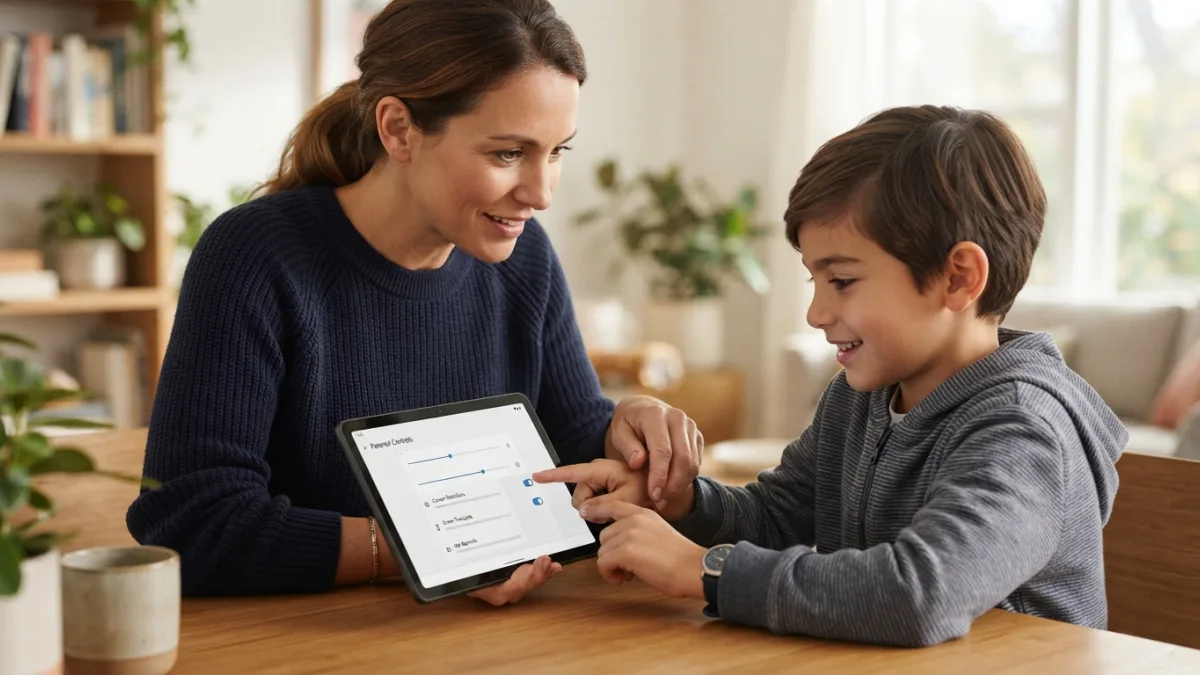
How to Set Up Parental Controls on Android
Handing a smartphone to a child feels a little like handing over the keys to the entire internet, and that thought alone keeps a lot of parents up at night. Setting up parental controls on Android doesn’t require a tech degree, though, and most of the tools you need are already built into the phone or available as free downloads. Whether you’re worried about screen time, inappropriate content, or in-app purchases draining your bank account, Android gives you several ways to create boundaries that fit your family’s needs. This guide walks through the practical steps, from Google’s own family management app to built-in settings you might not know exist.
Why Parental Controls Matter More Than Ever
Kids today get access to phones and tablets earlier than previous generations ever did, often before they fully understand concepts like privacy or online scams. A quick scroll through app stores or video platforms can expose young users to content that’s simply not age-appropriate, and that’s before you even factor in the risk of talking to strangers online. Parental controls aren’t about spying on your kids or being overly controlling; they’re about creating guardrails while children learn to navigate technology responsibly. Think of it the same way you’d think about training wheels on a bike. The goal isn’t permanent restriction, but a gradual, guided introduction to independence as your child demonstrates they can handle more freedom. If you want to dig deeper, our guide on How to Fix Wi-Fi Problems on Android covers this in more detail. This is a common part of dealing with parental controls on android, and it is worth keeping in mind.
Setting Up Parental Controls on Android with Google Family Link
The easiest and most comprehensive way to manage a child’s device is through Google Family Link, a free app designed specifically for this purpose. It works on Android phones and tablets running Android 5.0 or higher, and it lets you supervise your child’s account from your own phone, even if you’re not in the same room. Once set up, you can approve or block app downloads, monitor screen time, set bedtime schedules, and even see your child’s approximate location. Family Link essentially becomes the command center for everything related to your kid’s digital life, and because it’s made by Google, it integrates smoothly with the rest of the Android ecosystem, including Google Play and YouTube. Many people run into this exact issue with parental controls on android at some point.
Step-by-Step: Installing Family Link
Getting started with Family Link takes about ten to fifteen minutes, depending on how quickly your child’s device cooperates. Follow these steps to link the accounts properly: Keeping parental controls on android in mind here will save you time later on.
- Download the Google Family Link app on your own phone from the Play Store.
- Create a Google Account for your child if they don’t already have one, making sure to select the correct birth date so it’s recognized as a supervised account.
- Install Family Link on your child’s device as well, and follow the prompts to connect it to your parent account.
- Grant the necessary permissions so the app can monitor activity and enforce restrictions.
- Customize settings for screen time limits, app approval, and content filtering directly from your phone.
Once linked, you can adjust settings remotely at any time, which is handy when plans change unexpectedly, like a snow day that suddenly needs extra screen time rules. This connects closely with another common issue — see How to Transfer Files Between Android and PC (No App Needed) for more on that. This detail matters more than it seems once parental controls on android comes up again.
Managing Screen Time Limits and Daily Schedules
One of the biggest wins for parents using Family Link is the ability to set screen time limits that actually stick. You can set a total daily limit, block usage during certain hours like bedtime or school time, and even lock the device instantly if you need your child’s attention right away. These settings sync in real time, so if your child is scrolling through videos at 9 p.m. on a school night, the phone can simply lock itself based on the schedule you’ve already configured. Some families find it helpful to gradually loosen these restrictions as kids get older, using screen time data as a conversation starter rather than a punishment. Seeing exactly how many hours were spent on games versus educational apps can lead to more productive family discussions. It is one of those small things that makes parental controls on android easier to manage overall.
Restricting Apps and Controlling Downloads
Beyond time limits, controlling which apps a child can access is arguably just as important. Through Family Link, every app download or update on your child’s device requires your approval before it goes through, which stops kids from accidentally installing something inappropriate or expensive. You can also review the apps already installed and set individual time limits for specific ones, so a homework app stays available while a game gets capped at thirty minutes a day. For managing app restrictions on Android more broadly, you can hide apps entirely from the child’s home screen without deleting them, which is useful for apps you want to keep for yourself but don’t want visible on a shared or hand-me-down device. This is a common part of dealing with parental controls on android, and it is worth keeping in mind.
Content Filtering for Google Play, YouTube, and Chrome
Filtering what content your child can see is another pillar of Android’s parental control system. Within Family Link, you can set content ratings for Google Play, which blocks apps, movies, and games above a certain maturity level from even showing up in search results. YouTube has its own separate settings, and many parents find it safer to install YouTube Kids instead, since it offers a more curated experience built specifically for younger viewers. Chrome also has settings that let you block explicit sites or restrict browsing to an approved list of websites only. If you want a dedicated content filtering app with more granular control, several third-party options exist that scan web pages in real time and block harmful content before it ever loads. You might also find our article on How to Free Up Storage Space on Your Android Phone Fast helpful here. Many people run into this exact issue with parental controls on android at some point.
Built-In Digital Wellbeing Tools for Older Kids and Teens
For teenagers who need less hands-on supervision, Android’s Digital Wellbeing feature offers a lighter touch than full parental supervision through Family Link. Found in the phone’s Settings app, Digital Wellbeing shows a breakdown of app usage, lets users set their own app timers, and includes a “Focus Mode” that temporarily pauses distracting apps. While it’s not designed as a strict parental control tool, it can work well for older teens who are ready to self-regulate but still benefit from visual reminders about their habits. Some families use this as a transition step, moving a teenager from fully supervised Family Link settings to more independent Digital Wellbeing tracking once they’ve shown consistent responsibility with their screen time. Keeping parental controls on android in mind here will save you time later on.
Comparing Your Options for Parental Controls on Android
Different families have different needs, and no single tool fits every situation perfectly. The table below breaks down the most common options so you can decide which combination works best for your household. This detail matters more than it seems once parental controls on android comes up again.
| Tool | Best For | Key Features | Cost |
|---|---|---|---|
| Google Family Link | Younger children needing full supervision | App approval, screen time limits, location tracking, content filters | Free |
| Digital Wellbeing | Teens practicing self-regulation | Usage dashboards, app timers, Focus Mode | Free, built-in |
| YouTube Kids | Video content for young viewers | Curated videos, timers, content filters by age | Free |
| Third-party apps (e.g., Qustodio, Bark) | Advanced monitoring across multiple devices | Text monitoring, location alerts, web filtering, detailed reports | Paid subscription |
When to Consider Third-Party Parental Control Apps
Google Family Link covers most basic needs, but some parents want deeper monitoring, especially as kids get older and start using texting apps, social media, or multiple devices across different platforms. Third-party apps like Qustodio, Bark, or Norton Family offer more detailed reporting, including alerts for concerning keywords in messages or social media activity. These tools usually come with a monthly or annual subscription fee, but they often work across both Android and iOS, which is helpful for families with mixed devices or co-parenting situations involving different phone types. Before committing to a paid app, it’s worth trying the free trial period most of these services offer, just to see whether the interface and features actually match how your family uses technology day to day. For a related walkthrough, check out How to Stop Spam Calls and Texts on Android. It is one of those small things that makes parental controls on android easier to manage overall.
Best Practices for Using Kids Safety Settings Effectively
Technology alone won’t solve every problem, so pairing these tools with open conversation makes a real difference. Explain to your child why certain limits exist rather than just enforcing them silently, since kids who understand the reasoning tend to push back less. Revisit your settings every few months, because what worked for a seven-year-old probably won’t fit a ten-year-old’s needs a few years later. It also helps to periodically check in on the reports these apps generate instead of setting them up once and forgetting about them entirely. Combining kids safety settings with regular, judgment-free conversations about online experiences tends to build more trust over time than restrictions alone ever could. This is a common part of dealing with parental controls on android, and it is worth keeping in mind.
Frequently Asked Questions
Is Google Family Link free to use?
Yes, Family Link is completely free and available for download on the Google Play Store, with no subscription fees for its core features. Many people run into this exact issue with parental controls on android at some point.
Can I set different screen time limits for weekdays and weekends?
Yes, Family Link allows you to customize daily screen time limits separately, so weekends can have more relaxed rules than school days. Keeping parental controls on android in mind here will save you time later on.
What happens if my child tries to uninstall Family Link?
Family Link requires the parent’s account credentials to make major changes, including uninstalling the app, so children can’t remove it without your permission. This detail matters more than it seems once parental controls on android comes up again.
Do parental controls work on tablets as well as phones?
Yes, as long as the device runs Android 5.0 or higher, Family Link and most other parental control tools work the same way on both phones and tablets. It is one of those small things that makes parental controls on android easier to manage overall.
At what age should I stop using parental controls?
There’s no fixed age, but many parents start easing restrictions around thirteen or fourteen, gradually shifting from full supervision to self-monitoring tools like Digital Wellbeing. This is a common part of dealing with parental controls on android, and it is worth keeping in mind.


One Comment
Comments are closed.