
How to Turn Off Autocorrect Mistakes on Your Android Phone
You type a quick text to a friend, hit send, and suddenly your message reads like nonsense because your phone decided it knew better than you. If this sounds familiar, you’re not alone, and you’re probably ready to turn off autocorrect for good. Android phones come with a built-in feature designed to fix typos automatically, but it often creates more problems than it solves, swapping perfectly normal words for strange suggestions. The good news is that fixing this issue takes just a few minutes, and you don’t need any technical skills to do it. Whether you’re using a Samsung, Google Pixel, or another Android device, the steps are simple once you know where to look in your settings menu.
Why Autocorrect Causes So Many Problems
Autocorrect was originally built to help people type faster and catch obvious mistakes, but the algorithm behind it doesn’t always understand context. It might replace a name, a slang term, or a word in another language with something completely unrelated. Some people also type quickly with their thumbs, which confuses the prediction engine even more. Add in autocomplete suggestions that pop up before you finish a word, and you’ve got a recipe for embarrassing texts sent to bosses, parents, or dating matches. Many users only notice the error after hitting send, which makes it worse. Understanding why this happens is the first step toward deciding whether you want to disable the feature entirely or simply adjust how sensitive it is. If you want to dig deeper, our guide on How to Fix an Android Phone That Won't Turn On covers this in more detail. This is a common part of dealing with turn off autocorrect, and it is worth keeping in mind.
How to Turn Off Autocorrect on Gboard
Gboard is the default keyboard on most Android phones, including Google Pixel devices, and it’s usually the easiest one to adjust. Google built plenty of customization options into this keyboard, so you have real control over how much help it gives you while typing. Many people run into this exact issue with turn off autocorrect at some point.
Step-by-Step Instructions for Gboard Autocorrect
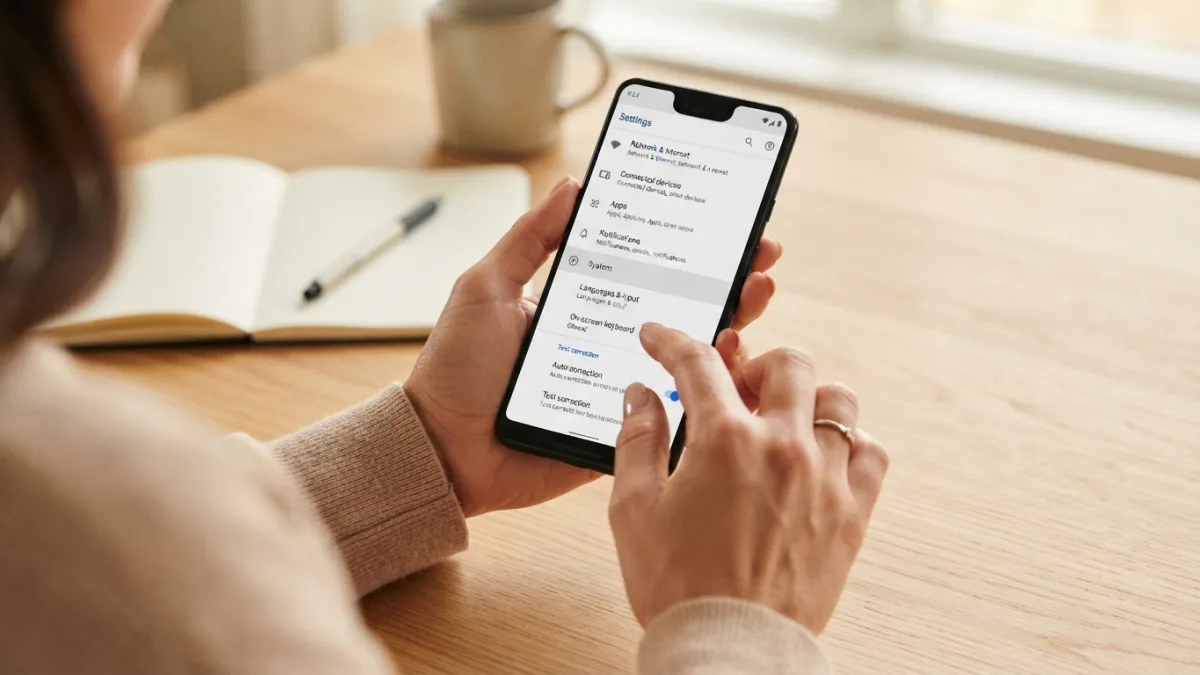
- Open your phone’s Settings app and tap System, then Languages and Input.
- Select On-screen Keyboard, then choose Gboard.
- Tap Text Correction.
- Find the Auto-correction toggle and switch it off.
- While you’re there, you can also disable Auto-capitalization and Show suggestion strip if they bother you too.
These android autocorrect settings apply instantly, so you can test them right away by opening a messaging app and typing a few sentences. Keeping turn off autocorrect in mind here will save you time later on.
Adjusting Samsung Keyboard Settings
If you own a Samsung Galaxy phone, chances are you’re using the Samsung Keyboard instead of Gboard, and the menu looks a bit different. Head into Settings, then General Management, and tap on Samsung Keyboard Settings. From there, look for the Smart Typing section, which houses most of the predictive text tools. You’ll see options labeled Predictive Text and Auto Replace. Turning off Auto Replace stops the keyboard from swapping words automatically, while disabling Predictive Text removes the suggestion bar above your keyboard entirely. Some users prefer to keep predictive text on but turn off auto replace, since this gives suggestions without forcing changes you didn’t approve. Experiment with both settings to find what feels comfortable for your typing style and daily habits. This connects closely with another common issue — see How to Free Up Storage Space on Your Android Phone Fast for more on that. This detail matters more than it seems once turn off autocorrect comes up again.
Disable Autocorrect Android Wide, Not Just in One App
One common mistake people make is changing settings inside a single app, like WhatsApp or Gmail, and assuming the fix applies everywhere. Autocorrect settings actually live at the keyboard level, not the app level, so once you disable autocorrect android system-wide through your keyboard app, the change should carry across every app you use, including texting, email, social media, and note-taking apps. If you notice the problem persisting in just one specific app, check whether that app has its own separate text settings buried in its preferences menu. A few apps, especially older ones, include their own spell-check features that operate independently from your phone’s main keyboard, which can cause confusion if you’ve already turned off the system-wide setting. It is one of those small things that makes turn off autocorrect easier to manage overall.
Fix Autocorrect Errors Without Turning It Off Completely
Not everyone wants to lose autocorrect entirely, since it does catch genuine typos and speeds up typing for many people. If you fall into this camp, there are ways to fix autocorrect errors without disabling the whole feature. Try lowering the aggressiveness of suggestions instead of removing them completely. Many keyboards, including Gboard, let you review and remove specific words from your personal dictionary that keep getting replaced incorrectly. You can also add frequently used names, slang, or industry terms to your personal dictionary so the keyboard stops flagging them as mistakes. This middle-ground approach gives you the speed benefits of autocorrect while cutting down on the awkward, unwanted substitutions that cause most of the frustration in the first place. This is a common part of dealing with turn off autocorrect, and it is worth keeping in mind.
Managing Your Personal Dictionary
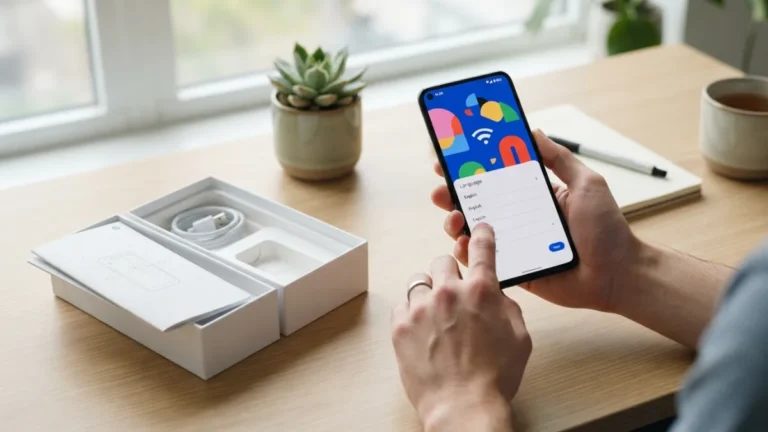
Your phone’s personal dictionary stores words that you’ve added manually or that the system learned from your typing habits over time. Sometimes this dictionary gets cluttered with incorrect entries, especially if you accidentally confirmed a wrong suggestion multiple times. To clean it up, go back into your keyboard settings and look for an option called Personal Dictionary or Dictionary. You’ll see a list of saved words, and you can tap any entry to edit or delete it. Adding names, nicknames, or specialized vocabulary here manually prevents future autocorrect mishaps. This step is especially helpful for people who type in more than one language or use technical terms regularly, since the default dictionary often doesn’t include specialized or uncommon words. You might also find our article on How to Set Up a New Android Phone Step by Step helpful here. Many people run into this exact issue with turn off autocorrect at some point.
Third-Party Keyboard Apps as an Alternative
If you’ve tried everything and you’re still frustrated with your phone’s default keyboard, switching to a third-party option might solve the problem. Apps like Microsoft SwiftKey or Grammarly Keyboard offer more refined prediction engines and give users deeper control over correction settings. These alternatives often let you fine-tune sensitivity levels, choose specific languages, and even sync your typing preferences across multiple devices. Installing a new keyboard app is simple: download it from the Google Play Store, open the app, and follow the on-screen prompts to enable it as your default keyboard. Just remember to review its android keyboard settings, since default configurations aren’t always ideal right out of the box, and might need a few tweaks to match your preferences. Keeping turn off autocorrect in mind here will save you time later on.
| Keyboard App | Autocorrect Control | Best For |
|---|---|---|
| Gboard | Simple on/off toggle, good dictionary tools | Most Android users, Pixel owners |
| Samsung Keyboard | Separate predictive text and auto-replace controls | Samsung Galaxy devices |
| SwiftKey | Adjustable sensitivity, multi-language support | People who type in several languages |
| Grammarly Keyboard | Grammar-focused suggestions, tone checks | Frequent email and professional writers |
A Few Extra Tips Worth Trying
Beyond the main settings, a few small habits can reduce autocorrect headaches even further. Slowing down slightly while typing gives the keyboard’s prediction engine a better chance to understand what you actually mean. Reviewing messages before hitting send catches most mistakes that slip through, even with autocorrect disabled. If you frequently text in more than one language, check that your keyboard’s language settings match what you’re typing, since mismatched language settings often cause more errors than autocorrect itself. Restarting your phone after changing settings can also help, since some devices need a quick refresh for new keyboard preferences to fully take effect. These small adjustments, combined with the settings changes above, usually eliminate most annoying typing errors. This detail matters more than it seems once turn off autocorrect comes up again.
Getting your phone’s keyboard to work the way you want doesn’t require any special tools or advanced knowledge, just a few visits to the right settings menu. Once you turn off autocorrect or fine-tune it to your liking, typing becomes noticeably less stressful, and you’ll stop worrying about embarrassing autocorrect fails showing up in your messages. Take a few minutes today to check your settings, clean up your personal dictionary, and decide whether a third-party keyboard might suit you better. Small changes like these add up, making everyday communication on your phone smoother and far more reliable. For a related walkthrough, check out How to Set Up Parental Controls on Android. It is one of those small things that makes turn off autocorrect easier to manage overall.
Frequently Asked Questions
How do I turn off autocorrect on my Android phone quickly?
Go to Settings, then Languages and Input, select your keyboard app, and look for Text Correction or Smart Typing. From there, toggle off Auto-correction or Auto Replace, depending on your keyboard. This is a common part of dealing with turn off autocorrect, and it is worth keeping in mind.
Why does my Android phone keep autocorrecting words even after I disabled the setting?
This usually happens when a specific app has its own separate spell-check feature, or when you changed settings for one keyboard but your phone is actually using a different default keyboard app. Many people run into this exact issue with turn off autocorrect at some point.
Can I turn off autocorrect for just one language while keeping it on for another?
Yes, most keyboards, including Gboard and Samsung Keyboard, let you manage settings separately for each installed language under the keyboard’s language or region options. Keeping turn off autocorrect in mind here will save you time later on.
Will disabling autocorrect also remove predictive text suggestions?
Not necessarily. Autocorrect and predictive text are usually separate toggles, so you can turn off one while keeping the other active, depending on your typing preferences. This detail matters more than it seems once turn off autocorrect comes up again.
Is it possible to fix autocorrect errors without turning the feature off completely?
Yes, you can edit your personal dictionary to remove incorrect entries and add words you use often, which reduces mistakes while keeping autocorrect active for genuine typos. It is one of those small things that makes turn off autocorrect easier to manage overall.



4 Comments
Comments are closed.